
Sold by: ProvenCloud
Deployed on AWS
Free Trial
This is a repackaged open source software product wherein additional charges apply for a secure, ready-to-use MariaDB 12.3 LTS database server with phpMyAdmin. Get a MySQL-compatible database server that tunes itself to your instance size on first boot, with phpMyAdmin ready in your browser. Every instance gets its own passwords.
Overview
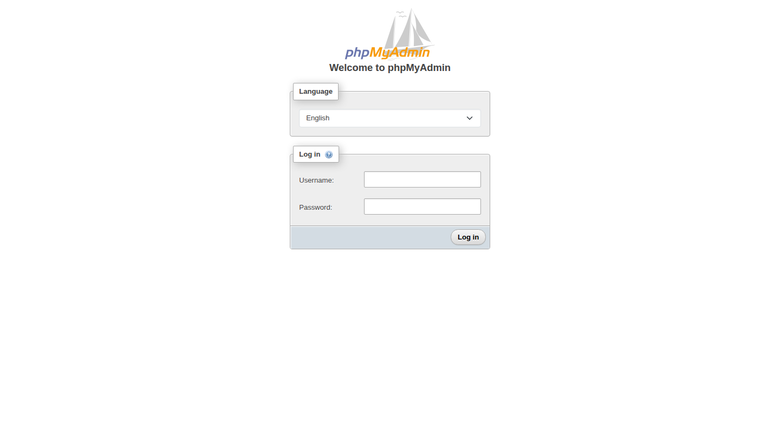
A MySQL-compatible database server with a web console
MariaDB is a popular open source relational database and a drop-in replacement for MySQL in most applications. Developers and teams use it for web applications, content management systems, ERP and CRM software, analytics and any workload that speaks the MySQL protocol. This image gives you a dedicated, tuned database server in minutes, with a web admin tool and nothing else you do not need.
Who it is for
- Developers who need a database for web apps and CMSs
- Teams running ERP, CRM or analytics on MariaDB
- Admins who prefer phpMyAdmin for daily database work
What is included
- MariaDB 12.3.3 LTS from the official MariaDB repository, on Ubuntu 24.04 LTS
- phpMyAdmin 5.2.3 served by nginx with PHP-FPM 8.3
- InnoDB buffer pool, connection limit, temporary tables and thread pool sized from the instance's real memory and CPUs on first boot
- Slow-query logging on, and binary logging enabled for point-in-time recovery
- Helper scripts pass_mariadb.sh, pass_mariadb_admin.sh and tune_mariadb.sh
Secure by default
- No password ships in the image: every instance sets its own root and admin passwords, phpMyAdmin secrets and server ID on first boot
- The root account works only on the server itself; applications use the separate admin account
- SSH accepts key-based login only
Get started in 4 steps
- Launch the instance (t3a.small recommended) and allow ports 22, 80 and 3306; limit all three to your own IP and app servers
- Wait a few minutes while the database tunes itself, then open http:///phpmyadmin
- Sign in with root and your instance ID
- Create your database, then connect your application on port 3306 with the admin account
Example use case
An online store moves its MySQL-based shop database off a shared server. It creates the shop database and an application user in phpMyAdmin, imports the existing dump, points the shop at port 3306 with the admin account, and keeps binary logging on so it can restore to any point in time after a mistake.
About ProvenCloud
ProvenCloud builds and maintains 50 ready-to-use server images on AWS Marketplace. Every image is built from official sources, scanned by AWS Marketplace before each release, and rebuilt when an important security fix ships: in November 2026 we rebuilt and re-released 29 products for CVE-2026-111497. Our Zabbix solution has passed the AWS Foundational Technical Review.
What you get from ProvenCloud on top of the free software
A pre-built and tested image that is ready in minutes, a unique security setup for every server, simple scripts for changing passwords, regular image updates, and help by email whenever you need it. MariaDB is open source software licensed under GPL-2.0, and phpMyAdmin under GPL-2.0. MariaDB is a trademark of its respective owner. This image is an independent build by ProvenCloud.
Highlights
- Ready in minutes: launch the instance, open phpMyAdmin in your browser or connect your application on port 3306. MariaDB and phpMyAdmin are already installed, configured and tuned.
- Secure by default: no shared or default passwords. Every instance sets its own root and application passwords and phpMyAdmin secrets on first boot, root signs in only on the server itself, and SSH is key-only.
- Tuned for your instance: memory, connection limits and the thread pool are sized from your instance's RAM and CPUs on first boot, with slow-query logging and binary logs for point-in-time recovery.
Details
Sold by
Categories
Delivery method
Delivery option
64-bit (x86) Amazon Machine Image (AMI)
Latest version
Operating system
Ubuntu 24.04
Deployed on AWS
Features and programs
Financing for AWS Marketplace purchases
AWS Marketplace now accepts line of credit payments through the PNC Vendor Finance program. This program is available to select AWS customers in the US, excluding NV, NC, ND, TN, & VT.

Pricing
Free trial
Try this product free for 5 days according to the free trial terms set by the vendor. Usage-based pricing is in effect for usage beyond the free trial terms. Your free trial gets automatically converted to a paid subscription when the trial ends, but may be canceled any time before that.
Pricing is based on actual usage, with charges varying according to how much you consume. Subscriptions have no end date and may be canceled any time. Alternatively, you can pay upfront for a contract, which typically covers your anticipated usage for the contract duration. Any usage beyond contract will incur additional usage-based costs.
Additional AWS infrastructure costs may apply. Use the AWS Pricing Calculator to estimate your infrastructure costs.
- ...
Dimension | Cost/hour |
|---|---|
t3a.small Recommended | $0.03 |
c1.xlarge | $0.06 |
c3.2xlarge | $0.10 |
c3.4xlarge | $0.10 |
c3.8xlarge | $0.10 |
c3.large | $0.04 |
c3.xlarge | $0.06 |
c4.2xlarge | $0.10 |
c4.4xlarge | $0.10 |
c4.8xlarge | $0.10 |
Dimensions summary
You pay a fixed hourly software charge that is the same across every option here. The many dimensions are not pricing tiers. Each one maps to a specific EC2 instance type you choose when you launch the image. Your total cost scales with the instance you pick: larger compute, memory, storage, or GPU instances carry higher EC2 charges billed by AWS, on top of the software rate. You add your own EC2 and storage costs separately. Billing runs per hour. A short free trial applies before the hourly software charge begins.
Top-of-mind questions for buyers
Each dimension names a specific EC2 instance type. You pick one at launch, and it sets the compute, memory, and storage the database runs on. The software charge is the same hourly rate on every instance type. Your separate EC2 charge from AWS varies by the instance you choose.
The hourly software charge meters running time. A fully stopped instance does not accrue the software rate. You may still pay AWS for attached storage, since the root volume persists while stopped. Restarting the instance resumes the software charge.
Two charges combine on your AWS invoice: a flat hourly software rate that stays the same on every instance type, plus your own EC2 and storage costs billed by AWS. The software rate is fixed, so the EC2 portion grows when you move to a larger instance.
www.provencloud.io
Helpful?
Vendor refund policy
Software charges are billed hourly, only while your instance runs. You can stop charges at any time by terminating the instance or cancelling your subscription. Charges already incurred are not refundable.

Legal
Vendor terms and conditions
Upon subscribing to this product, you must acknowledge and agree to the terms and conditions outlined in the vendor's End User License Agreement (EULA) .
Content disclaimer
Vendors are responsible for their product descriptions and other product content. AWS does not warrant that vendors' product descriptions or other product content are accurate, complete, reliable, current, or error-free.
Delivery details
64-bit (x86) Amazon Machine Image (AMI)
Amazon Machine Image (AMI)
An AMI is a virtual image that provides the information required to launch an instance. Amazon EC2 (Elastic Compute Cloud) instances are virtual servers on which you can run your applications and workloads, offering varying combinations of CPU, memory, storage, and networking resources. You can launch as many instances from as many different AMIs as you need.
Version release notes
Latest stable release on AWS Marketplace.
MariaDB 12.3.3 LTS on Ubuntu 24.04 LTS with phpMyAdmin 5.2.3, nginx and PHP-FPM 8.3; tuned to the instance's memory and CPUs on first boot.
Unique root and admin passwords, phpMyAdmin secrets and server ID are created for every instance on first boot.
Includes helper scripts in /home/ubuntu/iscripts for changing passwords.
Additional details
Usage instructions
Once the instance is running, wait for the instance health checks to pass, then allow a few minutes for the database to finish tuning itself to your instance size. Open phpMyAdmin at http://<instance-public-ip>/phpmyadmin and sign in with root as username and your instance ID as password.
To connect a client or application over the network, use port 3306 with the username admin and your instance ID as password, for example: mariadb -h <instance-public-ip> -P 3306 -u admin -p. The root account works only on the server itself and in phpMyAdmin. You can also access your instance via SSH using the username ubuntu and your Amazon private key.
Required inbound ports: 22 (SSH), 80 (phpMyAdmin) and 3306 (database). Open port 3306 only to the addresses that need it, such as your application servers or VPC range, never to 0.0.0.0/0. Allow port 22 only from your own IP address.
Your instance ID is shown in the EC2 console, for example i-0123456789abcdef0. Allow a few minutes after launch for the first-boot setup to finish before you sign in. Every instance sets its own passwords on first boot, so no two instances share a password.
Change your passwords after the first sign-in: connect over SSH and run sudo bash /home/ubuntu/iscripts/pass_mariadb.sh for root or pass_mariadb_admin.sh for the admin account, from the same folder. If you change the instance type, run sudo bash /home/ubuntu/iscripts/tune_mariadb.sh to re-size the database for the new memory.
phpMyAdmin is served over plain HTTP so it works on a bare IP address. For production, allow port 80 only from your own IP address or add your own domain and an SSL certificate.
Resources
Vendor resources
Support
Vendor support
Email: support@provencloud.io
Support page: https://www.provencloud.io/support
Response time: we reply to every support email within 1 business day.
Hours: Monday to Friday, 10:00 to 19:00 IST (UTC+05:30)
Help with: first sign-in, passwords, domains and HTTPS, configuration questions, and upgrading to new versions.
Billing and refunds for this subscription are handled by AWS Marketplace.
AWS infrastructure support
AWS Support is a one-on-one, fast-response support channel that is staffed 24x7x365 with experienced and technical support engineers. The service helps customers of all sizes and technical abilities to successfully utilize the products and features provided by Amazon Web Services.
Similar products

This is a repackaged open source software product wherein additional charges apply for a secure, ready-to-use PostgreSQL 18 database server with the pgAdmin 4 web console. Create and manage PostgreSQL 18 databases from your browser about 3 minutes after launch, with pgAdmin 4 already connected to the server. Every instance gets its own passwords.

This is a repackaged open source software product wherein additional charges apply for a secure, ready-to-use LAMP stack with Apache, MySQL, PHP 8.3, phpMyAdmin and Webmin. Upload your PHP website or app and serve it with Apache and MySQL about 2 minutes after launch, with phpMyAdmin and Webmin already set up. Every instance gets its own passwords.

This is a repackaged open source software product wherein additional charges apply for a secure, ready-to-use LEMP stack with Nginx, MySQL, PHP 8.5, phpMyAdmin and Webmin. Move a PHP site or Laravel app off shared hosting onto your own server: upload your files and serve them with Nginx and PHP-FPM about 3 minutes after launch, with MySQL, phpMyAdmin and Webmin already connected. Every instance gets its own passwords.

This is a repackaged open source software product wherein additional charges apply for a secure, ready-to-use ownCloud 10.16 file sync and share server. Store, sync and share files with your team from desktop and mobile apps about 3 minutes after launch, on a server you control. Every instance gets its own passwords.
Customer reviews
No customer reviews yet
Be the first to review this product . We've partnered with PeerSpot to gather customer feedback. You can share your experience by writing or recording a review, or scheduling a call with a PeerSpot analyst.