
Sold by: ProvenCloud
Deployed on AWS
Free Trial
This is a repackaged open source software product wherein additional charges apply for a secure, ready-to-use ownCloud 10.16 file sync and share server. Store, sync and share files with your team from desktop and mobile apps about 3 minutes after launch, on a server you control. Every instance gets its own passwords.
Overview
Image
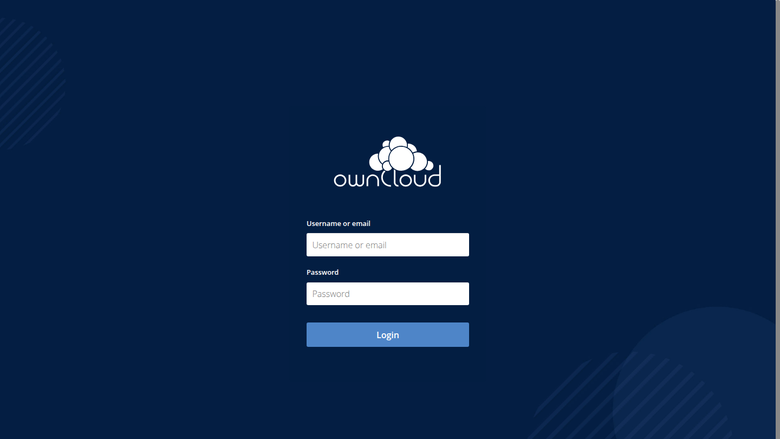
ownCloud File Sync and Share: /owncloud
Image
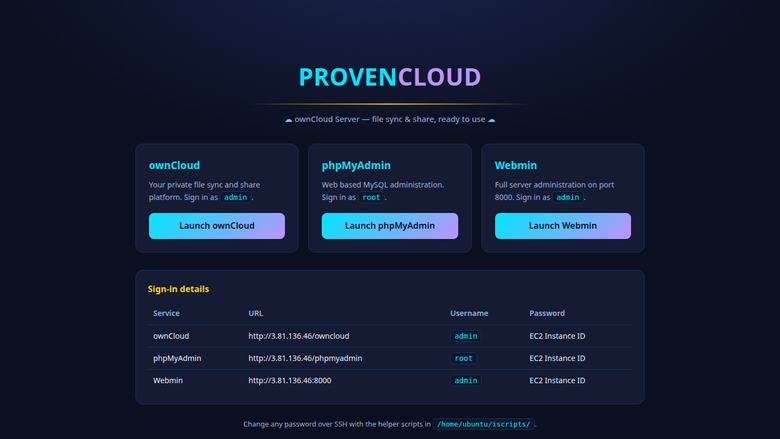
ownCloud File Sync and Share start page
Private file sync and sharing for your team
ownCloud is a well-established open source platform for file sync and share. It gives your team a private place to store files and share them by link or with other users, reachable from a browser, the desktop sync apps for Windows, macOS and Linux, or the mobile apps for Android and iOS. This image gives businesses, schools and IT teams a working ownCloud server in minutes, with no installer to run and no database to create.
Who it is for
- Businesses keeping files in their own cloud account
- Teams sharing files by link with passwords and expiry dates
- Organisations replacing per-user storage subscriptions
What is included
- ownCloud Server 10.16.3 on Ubuntu 24.04 LTS, with the setup already complete
- Apache 2.4 with PHP 7.4, the PHP version ownCloud 10 requires
- MySQL 8.0 and Redis 7 for file locking and caching
- File data kept outside the web root
- phpMyAdmin 5.2 for database administration and Webmin 2.660 for server administration
Secure by default
- No password ships in the image: every instance sets its own ownCloud administrator, MySQL root and Webmin passwords on first boot
- MySQL and Redis listen only on the server itself
- SSH accepts key-based login only
Get started in 4 steps
- Launch the instance (t3a.medium recommended) with a disk sized for your files, and allow ports 22, 80 and 8000; limit 22 and 8000 to your own IP
- Wait about 3 minutes, then open http:///owncloud
- Sign in with admin and your instance ID
- Create accounts for your team and install the desktop and mobile sync apps
Example use case
An architecture firm with 25 staff shares large drawing files between the office and building sites. Each staff member gets an ownCloud account, the desktop sync app keeps project folders on every office PC, site engineers open drawings in the mobile app, and clients receive password-protected links that expire after the project review.
About ProvenCloud
ProvenCloud builds and maintains 50 ready-to-use server images on AWS Marketplace. Every image is built from official sources, scanned by AWS Marketplace before each release, and rebuilt when an important security fix ships: in November 2026 we rebuilt and re-released 29 products for CVE-2026-111497. Our Zabbix solution has passed the AWS Foundational Technical Review.
What you get from ProvenCloud on top of the free software
A pre-built and tested image that is ready in minutes, a unique security setup for every server, simple scripts for changing passwords, regular image updates, and help by email whenever you need it. ownCloud Server itself is open source software licensed under AGPL-3.0. ownCloud is a trademark of its respective owner; this image is an independent build by ProvenCloud.
Highlights
- Ready in minutes: launch the instance, open http://<public-ip>/owncloud in your browser and sign in. ownCloud 10.16, MySQL, Redis, phpMyAdmin and Webmin are already installed and configured, with no setup wizard to complete.
- Secure by default: no shared or default passwords. Every instance sets its own ownCloud, MySQL and Webmin passwords on first boot, SSH is key-only, and the database is not exposed to the internet.
- Your files on your own server: sync with the ownCloud desktop and mobile apps, share files and folders by link with passwords and expiry dates, and keep data outside the web root.
Details
Sold by
Categories
Delivery method
Delivery option
64-bit (x86) Amazon Machine Image (AMI)
Latest version
Operating system
Ubuntu 24.04
Deployed on AWS
Features and programs
Financing for AWS Marketplace purchases
AWS Marketplace now accepts line of credit payments through the PNC Vendor Finance program. This program is available to select AWS customers in the US, excluding NV, NC, ND, TN, & VT.

Pricing
Free trial
Try this product free for 5 days according to the free trial terms set by the vendor. Usage-based pricing is in effect for usage beyond the free trial terms. Your free trial gets automatically converted to a paid subscription when the trial ends, but may be canceled any time before that.
Pricing is based on actual usage, with charges varying according to how much you consume. Subscriptions have no end date and may be canceled any time. Alternatively, you can pay upfront for a contract, which typically covers your anticipated usage for the contract duration. Any usage beyond contract will incur additional usage-based costs.
Additional AWS infrastructure costs may apply. Use the AWS Pricing Calculator to estimate your infrastructure costs.
- ...
Dimension | Cost/hour |
|---|---|
t3a.medium Recommended | $0.03 |
c1.xlarge | $0.05 |
c3.2xlarge | $0.08 |
c3.4xlarge | $0.08 |
c3.8xlarge | $0.08 |
c3.xlarge | $0.05 |
c4.2xlarge | $0.08 |
c4.4xlarge | $0.08 |
c4.8xlarge | $0.08 |
c4.xlarge | $0.05 |
Dimensions summary
You pay by the hour for the EC2 instance that runs this image. The software itself is open source and needs no license key, so the hourly rate reflects the chosen instance type. Pricing scales with the instance family and size you select, spanning general-purpose, compute, memory, storage, and accelerated options from small sizes up to very large ones. There are no tiers or feature upgrades across instance types; every instance runs the identical software. Pick the instance that matches your workload, and your cost tracks the hours it runs. Compute and storage are billed by AWS.
Top-of-mind questions for buyers
The hourly rate covers the running EC2 instance you select. The software is open source with no license key, so you pay only for compute and storage through AWS. A fully stopped instance does not accrue hourly compute charges, though attached storage may still bill separately.
The vendor's catalog lists t3a.medium as the recommended instance type, with an 8 GiB gp3 root volume. You may choose any listed instance family and size instead. Larger instances carry a higher hourly rate because pricing tracks the compute capacity you select, not the software.
No. The software ships under an open-source license (AGPL-3.0) and needs no license key. There is no separate software subscription fee. You pay your cloud provider only for the compute and storage the instance uses, billed by the hour for the chosen instance type.
www.provencloud.io+1
Helpful?
Vendor refund policy
Software charges are billed hourly, only while your instance runs. You can stop charges at any time by terminating the instance or cancelling your subscription. Charges already incurred are not refundable.

Legal
Vendor terms and conditions
Upon subscribing to this product, you must acknowledge and agree to the terms and conditions outlined in the vendor's End User License Agreement (EULA) .
Content disclaimer
Vendors are responsible for their product descriptions and other product content. AWS does not warrant that vendors' product descriptions or other product content are accurate, complete, reliable, current, or error-free.
Delivery details
64-bit (x86) Amazon Machine Image (AMI)
Amazon Machine Image (AMI)
An AMI is a virtual image that provides the information required to launch an instance. Amazon EC2 (Elastic Compute Cloud) instances are virtual servers on which you can run your applications and workloads, offering varying combinations of CPU, memory, storage, and networking resources. You can launch as many instances from as many different AMIs as you need.
Version release notes
Existing servers keep running as they are and need no action. New launches get this version. To apply the same Ubuntu security fixes to a server you already run, connect over SSH and run sudo apt update && sudo apt full-upgrade.
ownCloud Server 10.16.3 (unchanged) on Ubuntu 24.04 LTS with Apache 2.4, PHP 7.4, MySQL 8.0, Redis, phpMyAdmin and Webmin, with all current Ubuntu security updates, including the Brotli library fix for CVE-2026-111497.
Unique ownCloud, MySQL and Webmin passwords are set for every instance on first boot.
Includes helper scripts in /home/ubuntu/iscripts for changing passwords.
Additional details
Usage instructions
Once the instance is running, enter http://<instance-public-ip>/owncloud into your browser. Wait for the instance health checks to pass. You will then see the ownCloud login page, enter admin as Username and your instance ID as password. The address http://<instance-public-ip> shows a start page with links to each console. You can access the phpMyAdmin page with url http://<instance-public-ip>/phpmyadmin and use root as username and your instance ID as password. You can access the Webmin page at port 8000, so your URL will be http://<instance-public-ip>:8000 and use admin as username and your instance ID as password. You can also access your instance via SSH using the username ubuntu and your Amazon private key.
Required inbound ports: 22 (SSH), 80 (ownCloud and phpMyAdmin) and 8000 (Webmin). For security, allow ports 22 and 8000 only from your own IP address.
Your instance ID is shown in the EC2 console, for example i-0123456789abcdef0. Allow two to three minutes after launch for the first-boot setup to finish before you sign in. Every instance sets its own passwords on first boot, so no two instances share a password.
Storage: the image has an 8 GB root disk, and ownCloud keeps uploaded files on it in /var/www/owncloud-data. Set the root volume to the size you need when you launch the instance, for example 50 GB or more.
Change your passwords after the first sign-in: connect over SSH and run sudo bash /home/ubuntu/iscripts/pass_owncloud.sh for ownCloud, pass_mysql.sh for MySQL root or pass_webmin.sh for Webmin, from the same folder.
The image serves plain HTTP so it works on a bare IP address. Before using it in production, add your own domain and an SSL certificate, or place it behind a load balancer with HTTPS.
Resources
Vendor resources
Support
Vendor support
Email: support@provencloud.io
Support page: https://www.provencloud.io/support
Response time: we reply to every support email within 1 business day.
Hours: Monday to Friday, 10:00 to 19:00 IST (UTC+05:30)
Help with: first sign-in, passwords, domains and HTTPS, configuration questions, and upgrading to new versions.
Billing and refunds for this subscription are handled by AWS Marketplace.
AWS infrastructure support
AWS Support is a one-on-one, fast-response support channel that is staffed 24x7x365 with experienced and technical support engineers. The service helps customers of all sizes and technical abilities to successfully utilize the products and features provided by Amazon Web Services.
Similar products

This is a repackaged open source software product wherein additional charges apply for a secure, ready-to-use Nextcloud 35 file sharing server. Give your team private cloud storage in about 3 minutes: store, sync and share files, calendars and contacts on a server you control. Every instance gets its own passwords.

This is a repackaged open source software product wherein additional charges apply for a secure, ready-to-use Rocket.Chat 8.9 team chat server with MongoDB. Give your team private chat with channels, direct messages, threads and file sharing, on a server you own, about 10 minutes after launch. Every instance gets its own passwords.

This is a repackaged open source software product wherein additional charges apply for a secure, ready-to-use SuiteCRM 8.10 CRM server. Track leads, deals, quotes and support cases in one CRM about 3 minutes after launch, with no per-user fees. Every instance gets its own passwords.

This is a repackaged open source software product wherein additional charges apply for a secure, ready-to-use Node.js 24 LTS stack with Nginx, PM2, MySQL and Redis. Deploy your Node.js app behind Nginx with PM2, MySQL and Redis already running, about 3 minutes after launch. Every instance gets its own passwords.
Customer reviews
No customer reviews yet
Be the first to review this product . We've partnered with PeerSpot to gather customer feedback. You can share your experience by writing or recording a review, or scheduling a call with a PeerSpot analyst.