
Sold by: ProvenCloud
Deployed on AWS
Free Trial
This is a repackaged open source software product wherein additional charges apply for a secure, ready-to-use OpenVPN 2.7.8 Community Edition VPN server with a web admin panel. Give your team secure remote access about 3 minutes after launch: create a VPN profile in your browser and import it into any OpenVPN app. Every instance gets its own passwords.
Overview
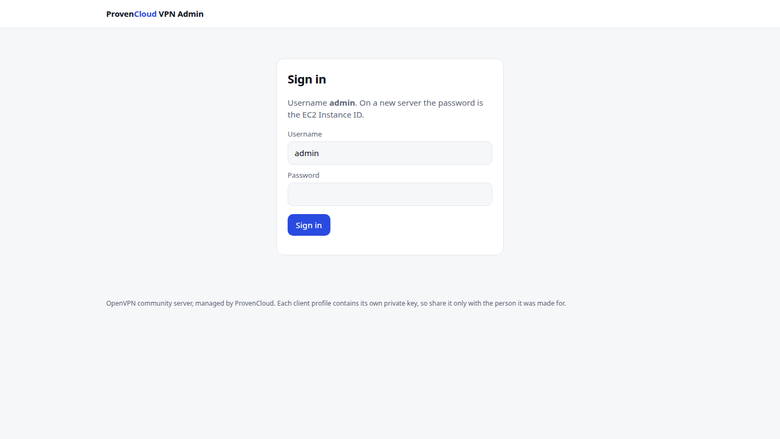
Your own OpenVPN server with a web admin panel
OpenVPN is one of the most widely used open source VPNs. This image turns an EC2 instance into your own VPN server with a simple web admin panel: create a profile for each person or device, download the .ovpn file, import it into any OpenVPN client app on Windows, macOS, Linux, iOS or Android, and revoke access with one click. Use it to protect traffic on public Wi-Fi, give remote staff a fixed exit IP address for allow-lists, or reach private resources in your cloud. There is no per-user licence and no connection cap; the only limit is the instance size.
Who it is for
- Remote teams that need a private VPN
- Admins reaching private servers inside a VPC
- Businesses giving staff secure access from any device
What is included
- OpenVPN 2.7.8 Community Edition from the official OpenVPN package repository, on UDP port 1194
- Easy-RSA 3.2.7 for the certificate authority
- The ProvenCloud VPN Admin panel served by nginx over HTTPS; port 80 redirects
- Helper scripts client.sh, https.sh, pass_vpnadmin.sh and pass_webmin.sh
- Webmin 2.670 for server administration, on Ubuntu 24.04 LTS
Secure by default
- No key or password ships in the image: every instance generates its own certificate authority, server certificate, tls-crypt key, HTTPS certificate and session key on first boot
- The tls-crypt key hides the handshake, so the server does not answer port scans
- The admin panel runs unprivileged and limits sign-in attempts, and SSH accepts key-based login only
Get started in 4 steps
- Launch the instance (t3a.small recommended) and allow UDP 1194 plus TCP 80 and 443; limit 22 and 8000 to your own IP
- Wait about 3 minutes, then open https:///
- Sign in to the VPN admin panel and create a profile for each person or device
- Download the .ovpn file and import it into any OpenVPN client app
What you get from ProvenCloud on top of the free software
A pre-built and tested image that is ready in minutes, a unique security setup for every server, simple scripts for changing passwords, regular image updates, and help by email whenever you need it. OpenVPN Community Edition and Easy-RSA are open source software licensed under GPL-2.0. This is the community edition, not OpenVPN Access Server. OpenVPN® is a registered trademark of OpenVPN Inc. This image is an independent build by ProvenCloud and is not affiliated with or endorsed by OpenVPN Inc.
Highlights
- Ready in minutes: launch the instance, sign in to the admin page over HTTPS and download your first .ovpn profile. OpenVPN, the certificate authority, the admin panel, HTTPS and Webmin are already set up.
- Secure by default: every instance creates its own certificate authority, server certificate and tls-crypt key on first boot, so no two servers share keys. Revoking a profile disconnects that device at once.
- No user limits: one profile per person or device, imported into any OpenVPN client app. Connected traffic leaves through your instance, giving your team one fixed IP address for allow-lists.
Details
Sold by
Categories
Delivery method
Delivery option
64-bit (x86) Amazon Machine Image (AMI)
Latest version
Operating system
Ubuntu 24.04
Deployed on AWS
Features and programs
Financing for AWS Marketplace purchases
AWS Marketplace now accepts line of credit payments through the PNC Vendor Finance program. This program is available to select AWS customers in the US, excluding NV, NC, ND, TN, & VT.

Pricing
Free trial
Try this product free for 5 days according to the free trial terms set by the vendor. Usage-based pricing is in effect for usage beyond the free trial terms. Your free trial gets automatically converted to a paid subscription when the trial ends, but may be canceled any time before that.
Pricing is based on actual usage, with charges varying according to how much you consume. Subscriptions have no end date and may be canceled any time. Alternatively, you can pay upfront for a contract, which typically covers your anticipated usage for the contract duration. Any usage beyond contract will incur additional usage-based costs.
Additional AWS infrastructure costs may apply. Use the AWS Pricing Calculator to estimate your infrastructure costs.
- ...
Dimension | Cost/hour |
|---|---|
t3a.small Recommended | $0.03 |
c1.xlarge | $0.06 |
c3.2xlarge | $0.10 |
c3.4xlarge | $0.10 |
c3.8xlarge | $0.10 |
c3.large | $0.04 |
c3.xlarge | $0.06 |
c4.2xlarge | $0.10 |
c4.4xlarge | $0.10 |
c4.8xlarge | $0.10 |
Dimensions summary
You pay by the hour for this prebuilt server image, and the rate depends on which EC2 instance size you run. Each dimension maps to one EC2 instance type, grouped into families such as general purpose (t and m), compute (c), memory (r and x), storage (d and i), and accelerated computing (g, p, f, inf, trn). Larger instances within a family cost more per hour. The software charge is separate from your own EC2 compute and storage costs. A 5-day free trial applies before hourly charges begin.
Top-of-mind questions for buyers
The hourly software charge covers the prebuilt server image itself. Your own EC2 compute and storage costs are billed separately by AWS on the same bill. The software is open source, so there is no licence key or per-user fee added.
The software charge meters each hour the instance runs, tied to the EC2 instance size you choose. A stopped instance stops accruing the hourly software charge. Underlying AWS storage for the root volume may still apply, billed by AWS, not as the software charge.
Yes. Each dimension maps to one EC2 instance type, and the hourly software rate differs by type. Larger sizes within a family cost more per hour. If you change instance types, billing follows the rate for the type you are currently running.
www.provencloud.io
Helpful?
Vendor refund policy
Software charges are billed hourly, only while your instance runs. You can stop charges at any time by terminating the instance or cancelling your subscription. Charges already incurred are not refundable.

Legal
Vendor terms and conditions
Upon subscribing to this product, you must acknowledge and agree to the terms and conditions outlined in the vendor's End User License Agreement (EULA) .
Content disclaimer
Vendors are responsible for their product descriptions and other product content. AWS does not warrant that vendors' product descriptions or other product content are accurate, complete, reliable, current, or error-free.
Delivery details
64-bit (x86) Amazon Machine Image (AMI)
Amazon Machine Image (AMI)
An AMI is a virtual image that provides the information required to launch an instance. Amazon EC2 (Elastic Compute Cloud) instances are virtual servers on which you can run your applications and workloads, offering varying combinations of CPU, memory, storage, and networking resources. You can launch as many instances from as many different AMIs as you need.
Version release notes
Latest stable release on AWS Marketplace.
OpenVPN 2.7.8 Community Edition with Easy-RSA 3.2.7 and the ProvenCloud VPN Admin panel (nginx HTTPS) on Ubuntu 24.04 LTS with all security updates, plus Webmin 2.670.
Every instance creates its own certificate authority, server certificate, tls-crypt key and HTTPS certificate on first boot; the self-signed HTTPS certificate follows a new public IP after a stop and start.
Includes helper scripts in /home/ubuntu/iscripts for changing passwords.
Additional details
Usage instructions
Once the instance is running, wait for the instance health checks to pass, then allow two to three minutes for the first-boot setup to finish. Make sure the instance's security group allows UDP port 1194, which carries the VPN tunnel; opening only TCP 1194 lets the admin page work while every VPN connection times out. Open https://<instance-public-ip>/ in your browser and accept the one-time warning for the instance's own certificate. Sign in with admin as username and your instance ID as password.
Click Create client, give the device a name, then click Download .ovpn and import the file into any OpenVPN client app. Create one client per device; Revoke disconnects that device immediately and stops its profile from working. Turn the connection on: your traffic now leaves the internet from this instance's IP address. Profiles connect to the instance's public IP, so attach an Elastic IP, or set a DNS name under Settings, to keep them working after a stop and start. You can access the Webmin page at port 8000, so your URL will be http://<instance-public-ip>:8000 and use admin as username and your instance ID as password. You can also access your instance via SSH using the username ubuntu and your Amazon private key.
Required inbound ports: 1194 UDP (VPN tunnel), 22 (SSH), 80 and 443 (admin page; port 80 redirects to HTTPS) and 8000 (Webmin). For security, allow ports 22 and 8000 only from your own IP address.
Your instance ID is shown in the EC2 console, for example i-0123456789abcdef0, all lowercase. Every instance sets its own passwords on first boot, so no two instances share a password.
Change your passwords after the first sign-in: connect over SSH and run sudo bash /home/ubuntu/iscripts/pass_vpnadmin.sh for the VPN admin page or pass_webmin.sh for Webmin, from the same folder. To manage clients over SSH, run sudo bash /home/ubuntu/iscripts/vpn-client.sh. To use a trusted HTTPS certificate for your own domain, point its DNS at the instance and run sudo bash /home/ubuntu/iscripts/vpn-https.sh <your-domain> <your-email>.
Resources
Support
Vendor support
Email: support@provencloud.io
Support page: https://www.provencloud.io/support
Response time: we reply to every support email within 1 business day.
Hours: Monday to Friday, 10:00 to 19:00 IST (UTC+05:30)
Help with: first sign-in, passwords, domains and HTTPS, configuration questions, and upgrading to new versions.
Billing and refunds for this subscription are handled by AWS Marketplace.
AWS infrastructure support
AWS Support is a one-on-one, fast-response support channel that is staffed 24x7x365 with experienced and technical support engineers. The service helps customers of all sizes and technical abilities to successfully utilize the products and features provided by Amazon Web Services.
Similar products

This is a repackaged open source software product wherein additional charges apply for a secure, ready-to-use ownCloud 10.16 file sync and share server. Store, sync and share files with your team from desktop and mobile apps about 3 minutes after launch, on a server you control. Every instance gets its own passwords.

This is a repackaged open source software product wherein additional charges apply for a secure, ready-to-use Odoo 19 Community ERP and CRM server with PostgreSQL. Run sales, invoicing, inventory and purchasing for your business from one app, with your company database created in your browser about 3 minutes after launch. Every instance gets its own passwords.

This is a repackaged open source software product wherein additional charges apply for a secure, ready-to-use WireGuard-protocol VPN server with the wg-easy 15.5.0 web admin panel. Run your own WireGuard VPN about 2 minutes after launch: create a user in your browser and connect a phone by scanning a QR code. Every instance gets its own passwords.

This is a repackaged open source software product wherein additional charges apply for a secure, ready-to-use Zabbix 7.4 monitoring server. Go from launch to your first live dashboard in about 3 minutes: monitor servers, network devices, applications and websites, and get an alert the moment something breaks. HTTPS is on by default and every instance gets its own passwords.
Customer reviews
No customer reviews yet
Be the first to review this product . We've partnered with PeerSpot to gather customer feedback. You can share your experience by writing or recording a review, or scheduling a call with a PeerSpot analyst.