AWS Public Sector Blog
Implement automated STIG compliance and SCAP scanning for Amazon WorkSpaces applications
Amazon WorkSpaces Applications simplifies application delivery by streaming desktop applications or entire desktops as a cloud service in Amazon Web Services (AWS). At its core, it transforms traditional desktop software into software-as-a-service (SaaS) offerings without requiring code changes or application restructuring. One of its key strengths is the multi-session capability, where multiple users can share a single WorkSpaces application instance, optimizing costs and resource usage. For public sector organizations, WorkSpaces Applications offers a crucial security benefit: users can access hosted applications and desktops without directly accessing the AWS Management Console or underlying infrastructure.
Although WorkSpaces Applications is a managed service with a Provisional Authority to Operate (ATO), systems and application configurations are customer responsibility in the AWS shared responsibility model. This means that workloads requiring an ATO must align with the Security Technical Implementation Guide (STIG) to be compliant.
STIGs are the configuration standards submitted by OS or software vendors to the Defense Information Systems Agency (DISA) for approval. After they’re approved, the configuration standards are used to configure security hardened information systems and software. STIGs contain technical guidance to minimize vulnerabilities and improve security by providing detailed instructions on how to configure systems to meet strict security standards.
This post shows the process of applying STIGs for WorkSpaces Applications images for Windows using Active Directory (AD) Group Policy. After applying the STIGs, the post demonstrates how to run Security Content Automation Protocol (SCAP) Compliance Checker to verify and document compliance. This is a tool that checks the system against SCAP benchmarks, which are standardized security configuration guidelines that define how systems should be set up to meet specific security requirements. Then, the tool calculates an overall compliance score with pass or fail status for individual checks. The scan runs against the domain controller to scan individual fleet instances within the organizational unit (OU) and then outputs the results to Amazon Simple Storage Service (Amazon S3).
Solution overview
This architecture demonstrates Active Directory integration with Amazon WorkSpaces Applications, enabling domain-joined virtual desktops with STIG compliance enforcement through Group Policy Objects. The solution supports multiple AD deployment models while maintaining consistent security posture through automated SCAP scanning with results archived to S3 for audit purposes.
Active Directory: WorkSpaces Applications performs a native Windows domain join to any Active Directory that fleet instances can reach from their VPC, such as AWS Managed Microsoft AD, self-managed AD on Amazon EC2, or an existing on-premises AD reachable over AWS Direct Connect or VPN. The directory placement is modular and doesn’t change the implementation: link the STIG GPOs to the WorkSpaces Applications organizational unit (OU), configure the Directory Config, and fleet instances automatically join the domain and receive GPO enforcement.
The walkthrough links the Domain Controller STIG to the Domain Controllers OU and the Member Server STIG to the WorkSpaces Applications OU. If your directory is operated by another team, such as an existing on-premises AD, coordinate the domain controller GPOs with that team.
Note on User Authentication: This blog focuses on OS-level STIG hardening. WorkSpaces Applications supports multiple authentication methods. Domain-joined fleets require SAML 2.0-based user federation, so any identity provider that supports SAML 2.0 works. The choice of IdP doesn’t affect this implementation. The STIG GPOs apply to the WorkSpaces Applications instances as described regardless of which IdP you use. For details on configuring federated authentication, see documentation.
The following diagram shows the solution architecture.
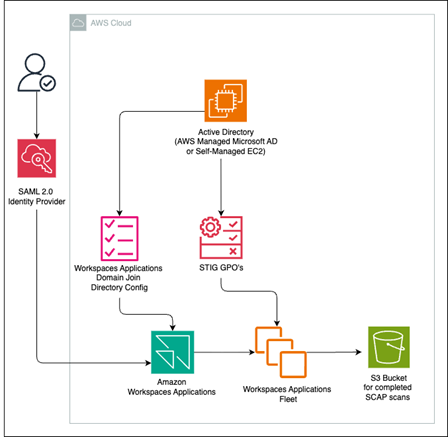
Figure 1: Architecture diagram of solution
Prerequisites
To follow along with this walkthrough, you need to have the following prerequisites:
- AWS Identity and Access Management (IAM) role with the following permissions:
- Full access to WorkSpaces Applications
- Read/write access to Amazon S3 for report storage
- IAM permissions to manage roles and policies
- AWS WorkSpaces Applications environment:
- Configured fleet and stack
- Active Directory integration
- AWS Managed Microsoft AD self-managed AD on Amazon EC2, or on-premises AD reachable over Direct Connect/VPN
- AD domain joined to WorkSpaces Applications fleet
- Configuration management through Group Policy management access
- Remote Server Administration Tools (RSAT) installed on a management workstation
- Permissions to create and modify Group Policy Objects (GPOs)
- SCAP Compliance Checker (SCC) tool
- Access to DISA STIG guidelines:
- DISA account for downloading latest STIG documents
- Windows: Windows Server 2022 STIG (or relevant version)
- S3 bucket for reports (configured with access policies and encryption settings as needed)
- Network connectivity:
- Virtual private cloud (VPC) with appropriate subnets and security groups
- VPC DHCP option set configured with AD-compatible DNS servers (domain controller IPs or AWS Managed Microsoft AD DNS addresses)
- Internet access
Applying DISA STIG GPOs for Windows Server 2022, Edge, Firefox, and .NET frameworks
After the WorkSpaces Applications environment is domain joined, you can apply DISA Group Policy Objects (GPOs) to enforce STIG-compliant configurations for domain controllers, member servers, and WorkSpaces Applications instances.
This section covers how to download, import, and apply DISA STIG GPOs, and it shows how to add the .NET Framework security baseline through registry policies. The walkthrough follows these high-level steps:
- Download the DISA STIG GPO package
- Install ADMX templates
- Import DISA GPO templates
- Add the .NET Framework STIG
- Link GPOs to the appropriate OUs
- Verify policy application
- Set up automated SCAP scanning on the fleet instances
Download the DISA STIG GPO package
To download the package, follow these steps:
- Sign in to your domain controller.
- Go to Group Policy Objects on the Department of Defense (DoD) Cyber Exchange.
- Download the latest DISA STIG GPO package and extract it.
Install ADMX templates
To install the templates, follow these steps:
- Locate the ADMX folder in the extracted package.
- Copy all
.admxfiles toC:\Windows\PolicyDefinitions\. - Copy
.admlfiles (usually inen-US) toC:\Windows\PolicyDefinitions\en-US\.
This enables Edge and Firefox GPOs to display correctly in the Group Policy Editor.
Import DISA GPO backups
To install the backups, follow these steps:
- Open the Group Policy Management Console (GPMC).
- Create new GPOs for:
- WinServer2022 – Domain Controller STIG
- WinServer2022 – Member Server STIG
- Microsoft Edge STIG
- Mozilla Firefox STIG
- Right-click each new GPO and choose Import Settings. Point to the corresponding folder in the extracted STIG package (for example,
DoD_Windows_Server_2022_DC\GPOs).
After import, these GPOs contain DISA’s recommended configurations.
Add the .NET Framework STIG
DISA doesn’t provide a GPO for the .NET Framework STIG. Create one manually using Group Policy Preferences. Follow these steps:
- On the GPMC, create a new GPO named
MS_Dot_Net_Framework_STIG. - Edit the GPO and go to Computer Configuration. Choose Preferences, Windows Settings, and Registry.
- Add the following registry keys:
| Hive | Key path | Value name | Type | Data |
|---|---|---|---|---|
| HKLM | SOFTWARE\Microsoft.NETFramework\v4.0.30319 | SchUseStrongCrypto | REG_DWORD | 1 |
| HKLM | SOFTWARE\Wow6432Node\Microsoft.NETFramework\v4.0.30319 | SchUseStrongCrypto | REG_DWORD | 1 |
| HKLM | SOFTWARE\Microsoft.NETFramework\v4.0.30319 | SystemDefaultTlsVersions | REG_DWORD | 1 |
| HKLM | SOFTWARE\Wow6432Node\Microsoft.NETFramework\v4.0.30319 | SystemDefaultTlsVersions | REG_DWORD | 1 |
These registry keys are pulled directly from DISA’s official .NET Framework STIG findings and Microsoft’s remediation guidance. They satisfy currently required STIG checks for modern Windows Server (.NET 4.0–4.8) and enable strong cryptography and TLS 1.2 for .NET applications.
Link GPOs to the appropriate OUs
Link the following GPOs to the OUs indicated:
- Link WinServer2022 – Domain Controller STIG to the Domain Controllers OU.
- Link WinServer2022 – Member Server STIG, Microsoft Edge STIG, Mozilla Firefox STIG, and MS_Dot_Net_Framework_STIG to the WorkSpaces Applications OU.
Verify policy application
Run the following commands on both the domain controller and WorkSpaces Applications instances:
gpupdate /force
gpresult /h C:\gporeport.html
Open the generated report to confirm the applied GPOs.
For browsers, you can check about:policies in Firefox and edge://policy in Edge.
The following image shows an example of what the html files with the applied GPOs would look like; it can be used to verify that all necessary policies have been applied.
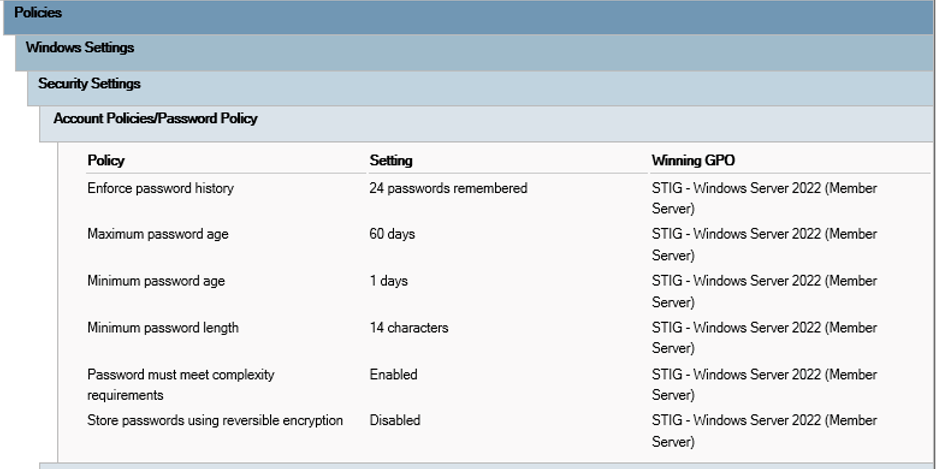
Figure 2: GPO results HTML file example
Set up automated SCAP scanning on the fleet instances
To set up scanning, complete the following steps:
Connect by Remote Desktop Protocol (RDP) to the domain controller instance and navigate to https://public.cyber.mil/stigs/scap/. Download the SCC version for Windows and the STIG Viewer.
- Unzip the SCC installation files and follow the prompts to download them to the Virtual Machine.
- Navigate to the directory containing the SCC files and invoke the following command to view available benchmarks:
./cscc.exe –listAllBenchmarks- Invoke the following command to enable the benchmarks that match up with the STIGs:
./cscc.exe --enableBenchmark Windows_Server_2022_STIG- To create a new AWS Systems Manager document, on the Systems Manager console, choose Documents and then Create document. Choose the Command document. Use the following configuration:
- a. Document name:
SCAP-Compliance-Scan - b. Document type:
Command - c. Content:
- a. Document name:
{
  "schemaVersion": "2.2",
  "description": "WorkSpaces Applications OU-based SCAP Compliance Scanning (SCC Pre-installed)",
  "parameters": {
    "OU": {
      "type": "String",
      "description": "Organizational Unit to scan",
      "default": "OU=workspacesapplications,DC=workspacesapplicationsdemo,DC=local"
    },
    "S3Bucket": {
      "type": "String",
      "description": "S3 bucket for results",
      "default": "workspacesapplications-scap-compliance-scans"
    },
    "FleetName": {
      "type": "String",
      "description": "WorkSpaces Applications Fleet Name for reporting",
      "default": "WorkSpacesApplicationsFleet"
    }
  },
  "mainSteps": [
    {
      "action": "aws:runPowerShellScript",
      "name": "RunOUSCAPScan",
      "inputs": {
        "timeoutSeconds": "7200",
        "runCommand": [
          "$ErrorActionPreference = 'Continue'",
          "$OU = '{{ OU }}'",
          "$S3Bucket = '{{ S3Bucket }}'",
          "$FleetName = '{{ FleetName }}'",
          "$InstanceId = (Invoke-RestMethod -Uri 'http://169.254.169.254/latest/meta-data/instance-id')",
          "$Timestamp = Get-Date -Format 'yyyy-MM-dd-HHmmss'",
          "$LocalResultsPath = 'C:\\scap-results'",
          "",
          "# Verify SCC is installed",
          "if (-not (Test-Path 'C:\\Program Files\\SCAP Compliance Checker 5.12.1\\cscc.exe')) {",
          "    Write-Error 'SCAP Compliance Checker not found. Please install SCC first.'",
          "    exit 1",
          "}",
          "",
          "Write-Output 'Starting OU-based SCAP scan for: $OU'",
          "",
          "# Set working directory",
          "Set-Location 'C:\\Program Files\\SCAP Compliance Checker 5.12.1'",
          "",
          "# Run SCAP scan against OU",
          "Write-Output 'Executing SCAP scan against OU...'",
          "& '.\\cscc.exe' --wmi --ou $OU",
          "",
          "# Wait for file system to settle",
          "Start-Sleep -Seconds 10",
          "",
          "# Find the most recent results folder",
          "$LatestSession = Get-ChildItem '$LocalResultsPath\\Sessions' | Sort-Object LastWriteTime -Descending | Select-Object -First 1",
          "",
          "if ($LatestSession) {",
          "    Write-Output 'Found results in: $($LatestSession.FullName)'",
          "    ",
          "    # Parse results for summary",
          "    $XMLResults = Get-ChildItem $LatestSession.FullName -Filter '*.xml' -Recurse",
          "    $TotalScanned = 0",
          "    $TotalPassed = 0",
          "    $TotalFailed = 0",
          "    ",
          "    foreach ($XMLFile in $XMLResults) {",
          "        try {",
          "            [xml]$SCAPData = Get-Content $XMLFile.FullName",
          "            $TestResults = $SCAPData.TestResult.RuleResult",
          "            if ($TestResults) {",
          "                $TotalScanned += $TestResults.Count",
          "                $TotalPassed += ($TestResults | Where-Object {$_.result -eq 'pass'}).Count",
          "                $TotalFailed += ($TestResults | Where-Object {$_.result -eq 'fail'}).Count",
          "            }",
          "        } catch {",
          "            Write-Warning \"Could not parse $($XMLFile.Name): $($_.Exception.Message)\"",
          "        }",
          "    }",
          "    ",
          "    # Create summary",
          "    $Summary = @{",
          "        InstanceId = $InstanceId",
          "        FleetName = $FleetName",
          "        OU = $OU",
          "        ScanTime = $Timestamp",
          "        TotalRules = $TotalScanned",
          "        PassedRules = $TotalPassed",
          "        FailedRules = $TotalFailed",
          "        CompliancePercentage = if ($TotalScanned -gt 0) { [math]::Round(($TotalPassed / $TotalScanned) * 100, 2) } else { 0 }",
          "    }",
          "    ",
          "    $Summary | ConvertTo-Json -Depth 2 | Out-File \"$($LatestSession.FullName)\\OU-Summary-$Timestamp.json\"",
          "    ",
          "    Write-Output \"\"",
          "    Write-Output \"=== OU COMPLIANCE SUMMARY ===\"",
          "    Write-Output \"OU Scanned: $OU\"",
          "    Write-Output \"Total Rules: $TotalScanned\"",
          "    Write-Output \"Passed: $TotalPassed\"",
          "    Write-Output \"Failed: $TotalFailed\"",
          "    Write-Output \"Compliance Percentage: $($Summary.CompliancePercentage)%\"",
          "    Write-Output \"=========================\"",
          "    ",
          "    # Upload to S3",
          "    $S3Key = \"workspaces-applications-ou-compliance/$FleetName/$Timestamp/\"",
          "    Write-Output 'Uploading to S3: s3://$S3Bucket/$S3Key'",
          "    ",
          "    aws s3 cp $LatestSession.FullName \"s3://$S3Bucket/$S3Key\" --recursive",
          "    ",
          "    if ($LASTEXITCODE -eq 0) {",
          "        Write-Output 'Successfully uploaded results to S3'",
          "    } else {",
          "        Write-Output 'Failed to upload to S3'",
          "        exit 1",
          "    }",
          "} else {",
          "    Write-Output 'No scan results found'",
          "    exit 1",
          "}"
        ]
      }
    }
  ]
}- To create a maintenance window, on the Systems Manager console, choose Maintenance Windows and then Create maintenance window. Use the following configuration:
- a. Name:
SCAP-Weekly-Scan - b. Description: Weekly SCAP compliance scanning
- c. Schedule:
cron(0 2 ? * SUN *)(2 AM every Sunday) - d. Duration: 4 hours
- e. Stop initiating tasks: 1 hour before end
- a. Name:
Register a new target by selecting the domain controller instance. Register a new task by selecting the command document you just created, the target that was just created, and populating the parameter values.
The scan will run at the frequency defined in the maintenance window schedule. It will scan the WorkSpaces Applications instances in the fleet and output the results to the defined S3 bucket.
Note: The automated scanning mechanism outlined in this post requires an Always-On fleet. On-Demand fleets may be offline during the maintenance window, so scans will not execute against stopped instances. For On-Demand fleets, consider additional automation that triggers the SSM document when instances come online, or run the SSM document manually as needed.
Summary
By importing and linking these GPOs, you establish a secure baseline across your WorkSpaces Applications and Active Directory environment:
- Domain controllers are hardened using the Windows Server STIG.
- WorkSpaces Applications instances receive member server, browser, and .NET security policies.
- Compliance is continuously checked using automated SCAP scanning.
Take the following considerations into account:
- To successfully copy the SCAP scan results to an S3 bucket for review or audit, the domain controller instance needs to have an IAM instance profile attached to it with Amazon S3 permissions.
- Choose STIGs to apply based on compliance requirements. The ones outlined in this post are best practice and serve as examples.
- The SCC tool scans against the benchmarks that have been enabled. Confirm that the benchmarks aligned to the STIGs have been turned on.
Rollback
If you need to revert the STIG GPO configurations or SCAP scanning setup, follow the steps below based on the component you want to roll back.
Revert STIG GPO configurations
If applied GPOs cause application compatibility issues or unintended behavior on WorkSpaces Applications instances, you can unlink or disable them without deleting the GPO objects, preserving them for future reference.
- Open the Group Policy Management Console (GPMC) on your domain controller.
- Navigate to the OU where the GPOs are linked (for example, the WorkSpaces Applications OU or Domain Controllers OU).
- Right-click the GPO link you want to revert and choose Delete Link to remove the link from the OU, or choose Link Enabled to toggle it off without removing it.
- To fully remove a GPO, right-click it under Group Policy Objects and choose Delete. Note that this action is irreversible.
- Force a Group Policy refresh on affected instances to apply the reverted state:
gpupdate /force- Verify the rollback by running the following command and reviewing the output HTML report:
gpresult /h C:\gporeport.htmlConfirm that the removed or disabled GPOs no longer appear in the applied policies list.
Revert the .NET Framework STIG registry settings
If the MS_Dot_Net_Framework_STIG GPO was applied and needs to be rolled back, either unlink the GPO as described above or manually remove the registry keys on affected instances:
- Open Registry Editor (regedit) or use a PowerShell script to delete the following keys:
- HKLM\SOFTWARE\Microsoft.NETFramework\v4.0.30319\SchUseStrongCrypto
- HKLM\SOFTWARE\Wow6432Node\Microsoft.NETFramework\v4.0.30319\SchUseStrongCrypto
- HKLM\SOFTWARE\Microsoft.NETFramework\v4.0.30319\SystemDefaultTlsVersions
- HKLM\SOFTWARE\Wow6432Node\Microsoft.NETFramework\v4.0.30319\SystemDefaultTlsVersions
- Restart the affected instances to ensure the changes take effect.
Disable or remove the SCAP scanning automation
To stop automated SCAP scans from running:
- On the AWS Systems Manager console, navigate to Maintenance Windows and select SCAP-Weekly-Scan.
- Choose Actions and then Disable to pause the maintenance window without deleting it, or choose Delete to remove it entirely.
- If you want to deregister the associated task or target, navigate to the Tasks and Targets tabs within the maintenance window and delete the relevant entries.
- To remove the Systems Manager document, navigate to Documents, select SCAP-Compliance-Scan, and choose Delete.
Restore a clean WorkSpaces Applications image
If STIG hardening causes persistent issues that cannot be resolved through GPO rollback alone, restore a pre-hardened image:
- In the WorkSpaces Applications console, navigate to Images and select a previously captured image that predates the STIG GPO application.
- Update your fleet to use the restored image by modifying the fleet configuration and selecting the clean image.
- Restart the fleet to propagate the image change to new sessions.
Note: WorkSpaces Applications images are immutable and versioned. If you use Image Builders or Managed Image Updates, retain prior image versions so you can revert quickly. Because the STIG hardening in this post is applied through Group Policy at runtime rather than baked into the image, it is also reversible on its own: unlink the GPO and recycled instances launch without it.
Conclusion
In this post, we demonstrated how to achieve automated STIG compliance for Amazon WorkSpaces Applications using Active Directory GPOs and SCAP scanning. Public sector organizations can use this architecture to maintain continuous security posture validation while accelerating Authority to Operate timelines through immutable audit trails stored in Amazon S3. By using Active Directory GPOs to enforce DISA STIG baselines, streaming instances are hardened against vulnerabilities from the moment they launch. However, enforcement is only half the battle, and validation is the key to audit readiness. By choosing to run SCAP scanning using the Domain Controller, you can achieve an architecture that validates your security posture in real time without bloating your golden images. This approach helps validate that your GPOs, including custom .NET Framework registry settings and browser policies, are successfully propagating to your live fleet. With your SCC results automatically exported to Amazon S3, you create an immutable, centralized audit trail.
This architecture not only satisfies rigorous DoD and federal compliance requirements but also simplifies the vulnerability management process, giving you confidence that your remote desktop environment is secure, compliant, and mission ready.
Ready to implement this solution? Review the Amazon WorkSpaces Applications documentation for additional configuration options. Explore related security automation patterns in Securing and automating compliance in the public sector with AWS on the Public Sector Blog.
Need expert assistance? If your organization requires help accelerating ATO timelines, implementing automated compliance at scale, or navigating DoD security requirements, AWS Professional Services specializes in public sector security and compliance engagements. Our team can help you design, implement, and optimize security architectures that meet your specific compliance requirements.