AWS Database Blog
Amazon Aurora PostgreSQL: cross-account synchronization using logical replication
In this post, we show you how to set up cross-account logical replication using Amazon Aurora PostgreSQL-Compatible Edition. By using the Aurora cross-account clone and PostgreSQL logical replication, you can achieve near real-time synchronization between a source and a target database in different AWS accounts.
You can customize the solution to meet specific requirements, including selective replication at the database, schema, or table level. This approach offers flexibility, scalability, and enhanced security, helping you meet specific use cases such as:
- Development and testing: You can use the cross-account replica for development and testing purposes without impacting the production environment. Developers and testers can work on the replica, perform experiments, run simulations, and validate changes without affecting the live production database.
- Data analysis and reporting: You can use the replica for data analysis, reporting, and generating insights without impacting the primary database’s performance. This allows for offloading resource-intensive analytical queries, facilitating business intelligence initiatives, and generating timely reports.
- Auditing and compliance reporting: You can use the cross-account replica for auditing and compliance reporting purposes if you have an AWS account dedicated to auditing. It provides a separate and immutable copy of the production data, ensuring data integrity and facilitating audit trails.
Solution overview
PostgreSQL logical replication provides fine-grained control over replicating and synchronizing parts of a database. For example, you can use logical replication to replicate an individual table or collection of tables of a database. For more information about the PostgreSQL implementation of logical replication, refer to Logical Replication and Logical Decoding Concept.
The following diagram illustrates our solution architecture.
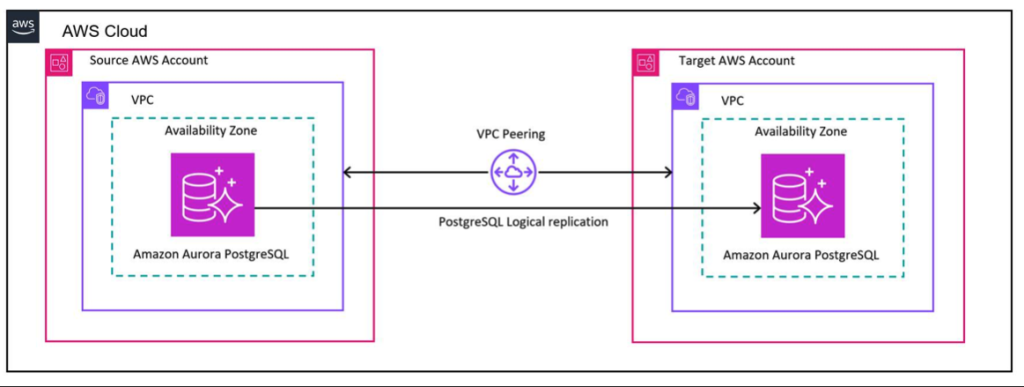
Figure 1: Cross-account logical replication solution architecture
Amazon Aurora PostgreSQL has a function called aurora_volume_logical_start_lsn(), which identifies the beginning of the record in the logical Write Ahead Log (WAL) stream for a given Aurora cluster volume. You can use this function during logical replication setup to determine the Log Sequence Number (LSN) at which the target database clone is taken. You can then use logical replication to continuously stream the newer data recorded after the LSN and synchronize the changes from publisher to subscriber.
This function is available on the following versions of Aurora PostgreSQL:
- 15.2 and higher 15 versions.
- 14.3 and higher 14 versions.
- 13.6 and higher 13 versions.
- 12.10 and higher 12 versions.
- 11.15 and higher 11 versions.
Prerequisites
To set up cross-account logical replication using Aurora PostgreSQL, you must complete the following prerequisites:
Limitations
When working on a logical replication setup, consider the restrictions that exist in PostgreSQL. For details, see Restrictions on logical replication.
Aurora PostgreSQL doesn’t support cross-account cloning across Regions, so the source and target (clone) databases should be in the same Region.
Solution walk-through
Using these AWS services incurs costs, so remember to clean up the resources if you use this post for testing purposes.
In this section, we implement the solution using the following steps:
- Configure the source database.
- Create a publication for PostgreSQL logical replication on the source database.
- Create the replication slot on the source database.
- Clone the source Aurora cluster in the target account.
- Get the LSN of the target database.
- Drop replication slot on target.
- Create a subscription on the target database.
- Start logical replication.
- Monitor replication.
- Clean up.
Configure the source database
Configure the WAL parameters
In PostgreSQL, logical replication is based on Write-Ahead Logging (WAL). WAL is the log of changes made to the database cluster, which the replication cluster uses to replay the changes to replicate the database changes. The default parameter group doesn’t have the required parameter setting to enable pglogical replication. To make logical replication work and allow read-only queries on the replica cluster, you must make these parameter changes by modifying the parameter group in Amazon Relational Database Service (Amazon RDS). These parameter changes enable the logical replication feature and set the related worker processes at the PostgreSQL cluster level.
On the current source database, make sure the following settings are configured. If not already enabled, you can configure these parameters in a new parameter group and assign this parameter group to your database, which requires a database reboot.
- On the Amazon RDS console, choose Parameter groups in the navigation pane.
- Choose Create a new parameter group.
- Modify the following parameters.
- wal_level – The wal_level parameter determines how much information is written to the WAL. The default value is minimal, which writes only the information needed to recover from a crash or immediate shutdown. The replica adds logging required for WAL archiving as well as information required to run read-only queries on a standby server. Setting this parameter to logical enables the replica database to be in read-only mode. For this post, we set
rds.logical_replication=1to achievewal_level=logical. This way, the same information is logged as with replica, plus information needed to allow extracting logical change sets from the WAL. The logical setting also adds information necessary to support logical decoding. - max_replication_slots – Setting this parameter ensures the primary database cluster retains enough WAL segments for replicas to receive them and the primary only recycles the transaction logs after it has been consumed by all the replicas. The advantage is that a replica can never fall behind so much that a re-sync is needed. This parameter must be set to at least the number of subscriptions expected to connect, plus some reserve for table synchronization.
- max_worker_processes – This parameter sets the maximum number of background processes that the database can support. It creates enough worker processes to serve each replica that corresponds to the WAL sender and handles other background processes the database system is running. The best practice is to set this to the number of CPUs you want to share for PostgreSQL exclusively. Generally, one per database is needed on the provider node and one per database is needed on the subscriber node in addition to the background processes.
- max_wal_senders – This parameter sets the maximum number of concurrent connections from replication databases (the maximum number of simultaneously running WAL sender processes). The default is zero, meaning replication is disabled. If starting with one replica, you must set this to 3. For every replica, you can add two WAL senders.
- wal_level – The wal_level parameter determines how much information is written to the WAL. The default value is minimal, which writes only the information needed to recover from a crash or immediate shutdown. The replica adds logging required for WAL archiving as well as information required to run read-only queries on a standby server. Setting this parameter to logical enables the replica database to be in read-only mode. For this post, we set
To use the AWS Command Line Interface (AWS CLI) to complete these steps, enter the following commands to set the parameters at the parameter group:
You can verify the parameter changes on the Amazon RDS console. In the following screenshot, rds.logical_replication=1 is set.

Figure 2: Parameter group with rds.logical_replication set to 1
- After the parameter settings in the parameter group are modified, you need to reboot the cluster for the changes to take effect, which causes an outage.
- Apply the parameter group to the database instance.
Create a publication for PostgreSQL logical replication
- Connect to the source database and enter the following command to create a new publication on the source database for all tables (or a set of tables) to be replicated.
- Validate the publication is created on the source database.
Create the replication slot for the source database
- Create a replication slot for the source database publication that was created in the previous step.
- Validate the replication slot is created using the following query.
Clone the source Aurora cluster in the target account
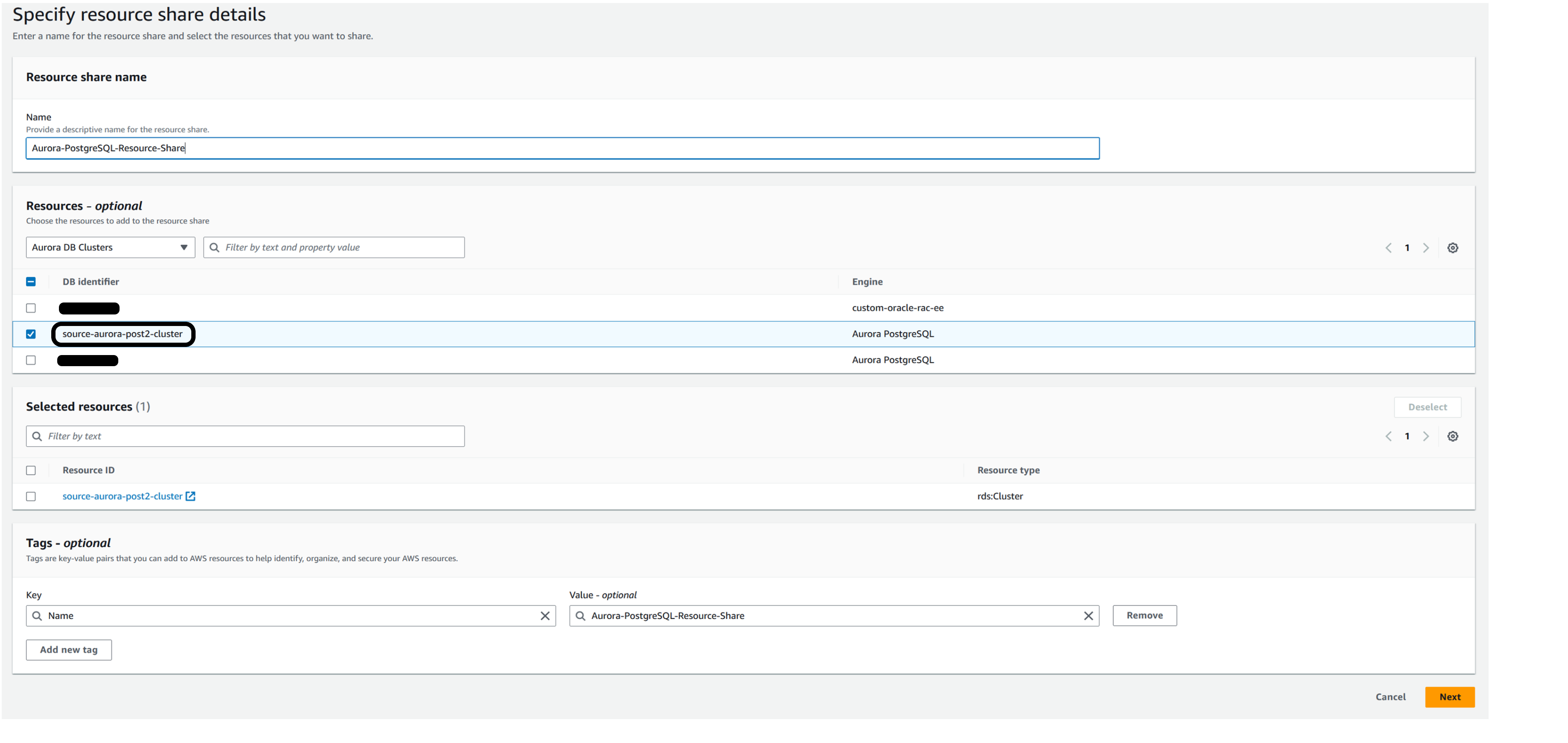
- On your source AWS account, open the AWS Resource Access Manager console and create a resource share for your Amazon Aurora PostgreSQL cluster.

- Specify the resource share details (Source: Aurora PostgreSQL DB cluster).
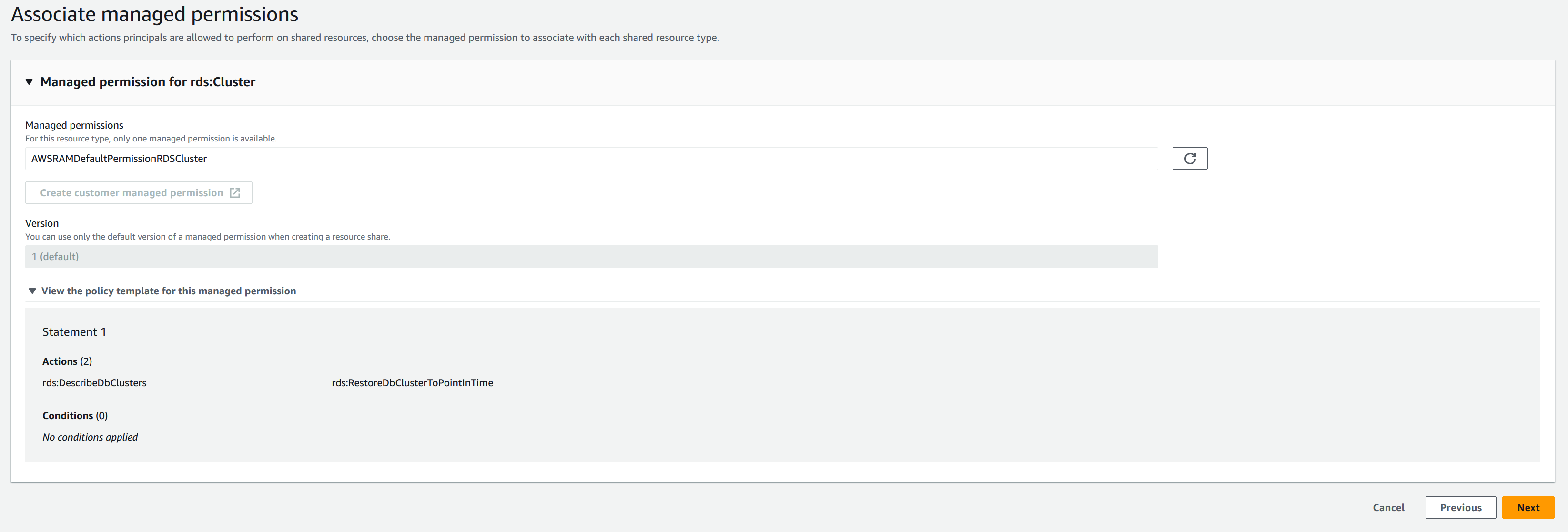
- Provide permission details.
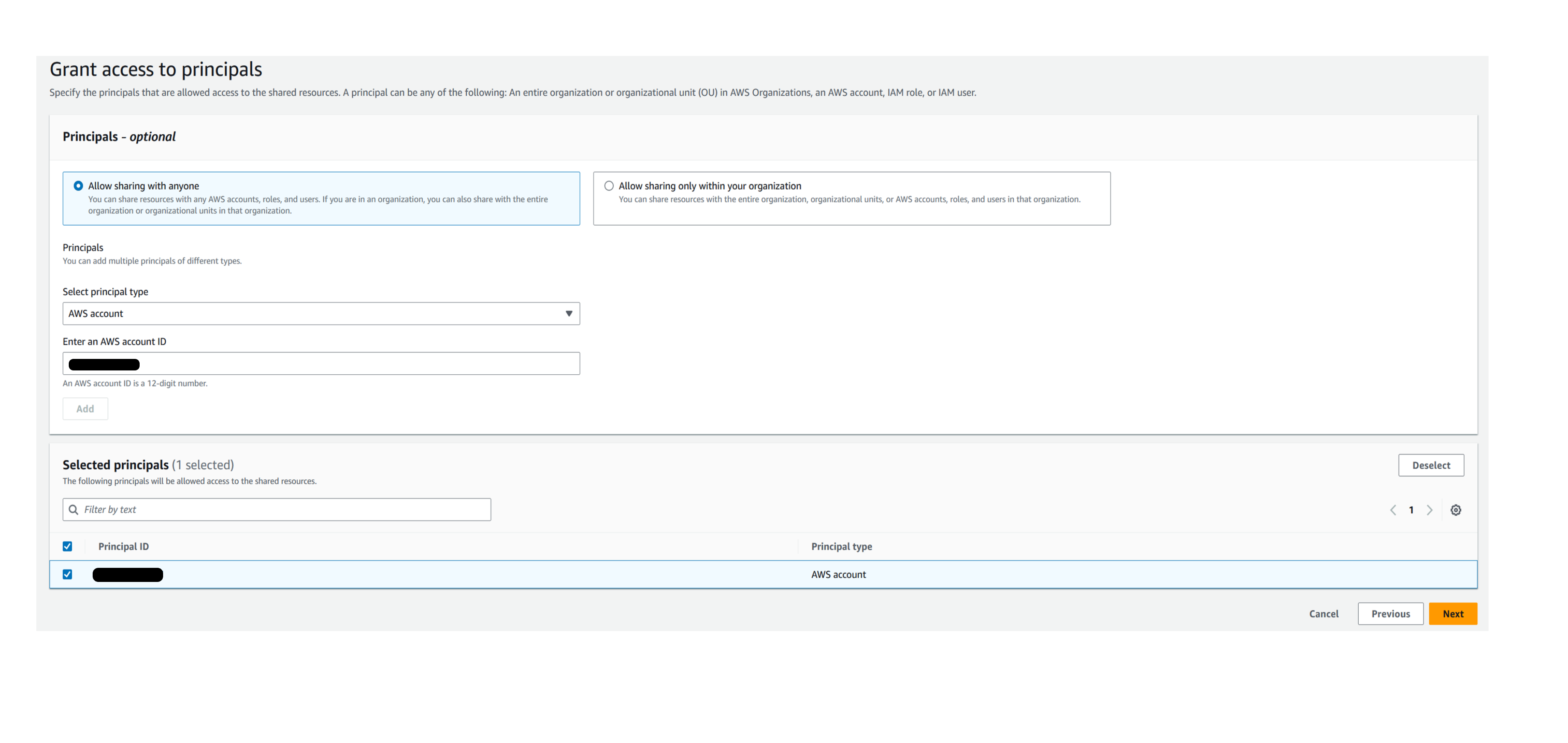
- Provide the target AWS account details to share the source Aurora PostgreSQL DB resource.
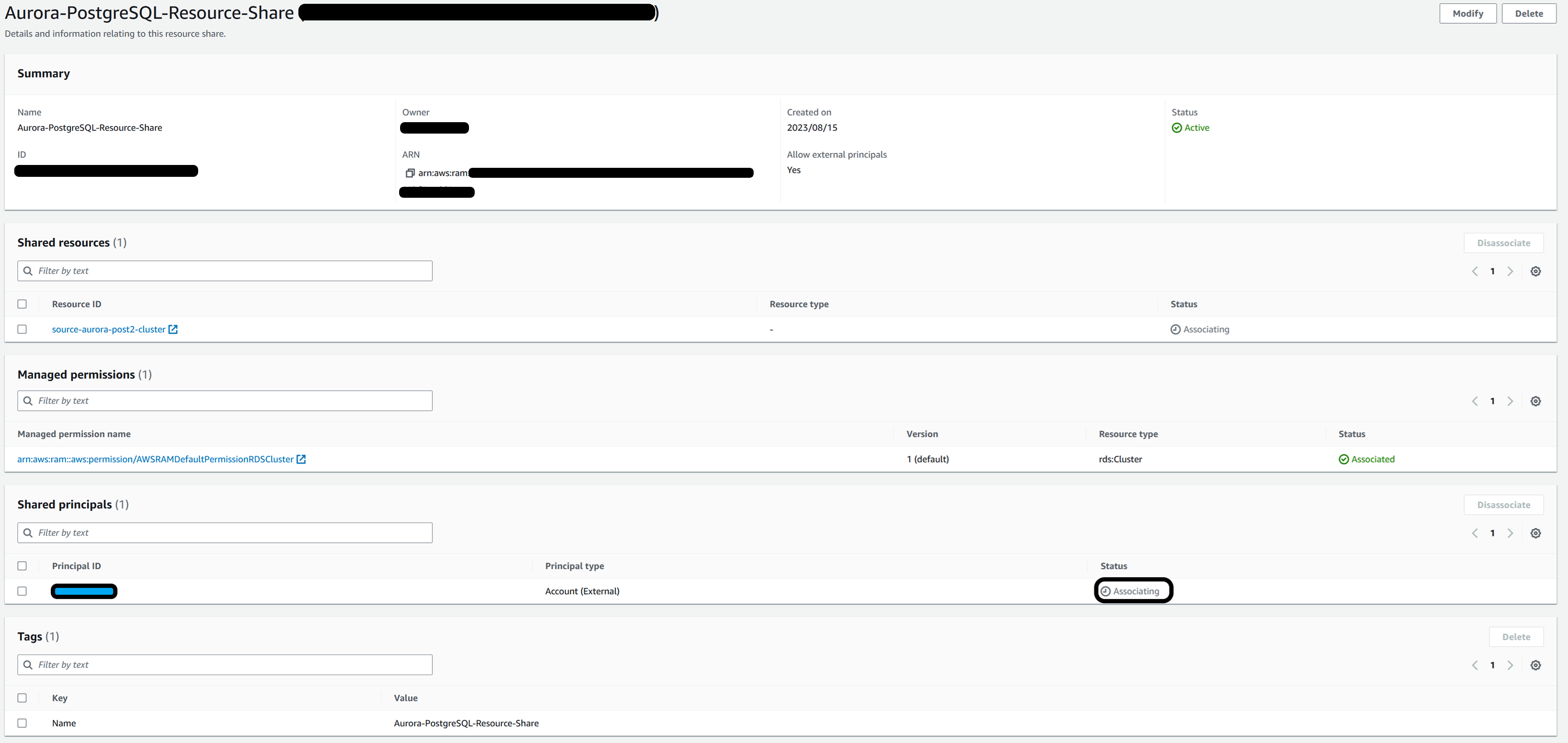
- Validate the status of the resource sharing on the AWS Resource Access Manager console. The status shows Associating.
- On your target AWS account, open the AWS Resource Access Manager console and accept the invitation for resource sharing. Select the Aurora DB resource and choose Accept sharing.

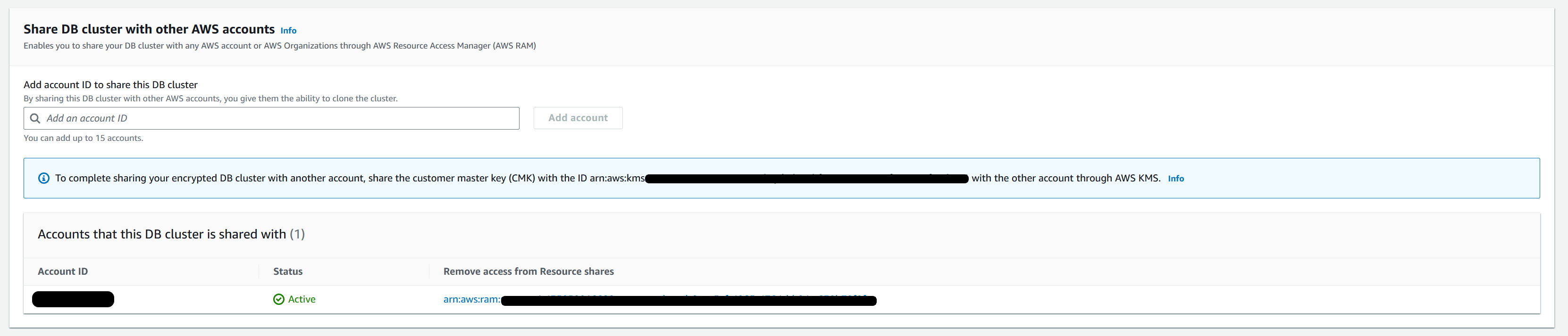
- After the invitation is accepted on the target AWS account, go back to the Amazon RDS console of the source AWS account. Under Connectivity & security, scroll down and confirm that the target account appears in the Share DB cluster with other AWS accounts section.
- After you share the source DB with the target account, create the clone DB on the target account.

For more details, see Creating an Amazon Aurora clone.
Get the LSN of the target database
- Identify the log sequence number from the target database for logical replication.
- Query the LSN, which identifies the beginning of a record in the WAL stream from where the logical replication should begin, you need this number later in the process, so make a note of it.
If the query to retrieve the LSN from the cloned database aurora_volume_logical_start_lsn() isn’t supported on your Aurora PostgreSQL version, perform a minor database upgrade of the clone to bring it to the nearest supported version as mentioned in the previous section.
Drop the replication slot on the target database
- The replication slot on the target database is copied over as part of the cloning process and is not needed on the target database.
- Drop the replication slot on the target database.
- Validate the replication slot is dropped on the target database.
Create a subscription on the target database
- Create a subscription on the target Aurora database clone (with source database credentials):
- Validate the subscription created on the target database.
Start logical replication between source and target database
- Determine the origin value of replication from the system catalog table in the cloned (target) database.
- Start replication in the cloned target database using the values determined in the preceding step:
<ro_name> ---> pg_33462, refers to the replication origin for target database.<lsn> ---> 0/6799E20, log_sequence_numberis the value returned by the earlier query of theaurora_volume_logical_start_lsnfunction.The previous command uses the pg_replication_origin_advance function to specify the starting point in the log sequence for replication.
- Enable the subscription on the target database with the following code:
Monitor replication
To monitor replication, run the following query on the source Aurora database in the primary AWS account.
The active column shows the value t (true), and the values for diff_size and diff_bytes decrease as the source and target databases synchronize.
You can view the PostgreSQL logs on the Events tab of the RDS console. See the following example code:
Note that sequence data isn’t replicated. The data in serial or identity columns backed by sequences are replicated as part of the table, but the sequence itself still shows the start value on the subscriber. If the subscriber is used as a read-only database, then this should typically not be a problem. If, however, some kind of switchover or failover to the subscriber database is intended, then the sequences need to be updated to the latest values, either by copying the current data from the publisher (perhaps using pg_dump) or by determining a sufficiently high value from the tables themselves.
Clean up
To clean up when finished, complete the following steps:
- Stop the logical replication and drop replication slots by connecting to the publisher (source database) and running the following SQL command.
- The replication slots can’t be active when you run this command. To deactivate the slot, perform the following steps:
- Modify the DB cluster parameter group associated with the publisher, as described in modify-db-cluster-parameter-group. Set the
rds.logical_replicationstatic parameter to 0. - Restart the publisher DB cluster for the change to the
rds.logical_replicationstatic parameter to take effect.
- Modify the DB cluster parameter group associated with the publisher, as described in modify-db-cluster-parameter-group. Set the
- To drop a subscription that no longer has a replication slot upstream, run the following commands in the target database.
- Delete the Aurora DB clusters and DB instances that you no longer need to avoid any cost associated with the database instances. For instructions, refer to Deleting Aurora DB clusters and DB instances.
WAL storage
In Amazon Aurora for PostgreSQL, the write-ahead log (WAL) storage is managed automatically by the service, and you don’t have direct control over its size. Amazon CloudWatch metrics such as TransactionLogsDiskUsage, WriteThroughput, and DiskQueueDepth can help you track the storage used by WAL files and monitor the rate of WAL generation and disk utilization.
Troubleshooting
By following best practices and proactive configuration settings, you can mitigate potential issues in your logical replication setup. Data might experience delays in reaching the target system because of network glitches or unexpectedly high volumes on the source system. However, the system eventually catches up and synchronizes the data.
A common issue is a duplicate key on the target subscriber database. To avoid this kind of error, make sure to use the aurora_volume_logical_start_lsn() function to capture the correct LSN before you enable the subscription on the target.
Future object replication: In this scenario, we enabled logical replication for all tables. For tables created after you enable replication, run the following command to push changes for the new tables.
Conclusion
In this post, we reviewed the steps to perform an Aurora PostgreSQL cross-account clone (standalone cluster) with continuous replication from your primary database. We also showed how to use the aurora_volume_logical_start_lsn() function together with native PostgreSQL logical replication. This combination replicates your database across AWS accounts while also using the capabilities of Aurora clone. This approach is useful for running clones of your lower database environments (synced with your primary database) in a different AWS account.
To get started, try cross-account cloning and logical replication for your own workloads in the Amazon RDS console, and see Creating an Amazon Aurora clone for more details.
We welcome your feedback. If you have questions or comments, leave them in the comments section.