Sold by: cloudimg
Deployed on AWS
Free Trial
AWS Free Tier
This product has charges associated with it for the installation, configuration and packaging of Oracle Database 21c Enterprise Edition 21.3 on Windows Server 2022 or 2019, updated at build: per-instance SYS, SYSTEM and PDBADMIN passwords set at first boot, listener on 127.0.0.1 only, CDB ORCL with PDB ORCLPDB. Bring your own Oracle licence.
These options are for Oracle Database 21c Enterprise Edition on Windows Server 2022 and 2019.
View 3 other optionsOverview
Image
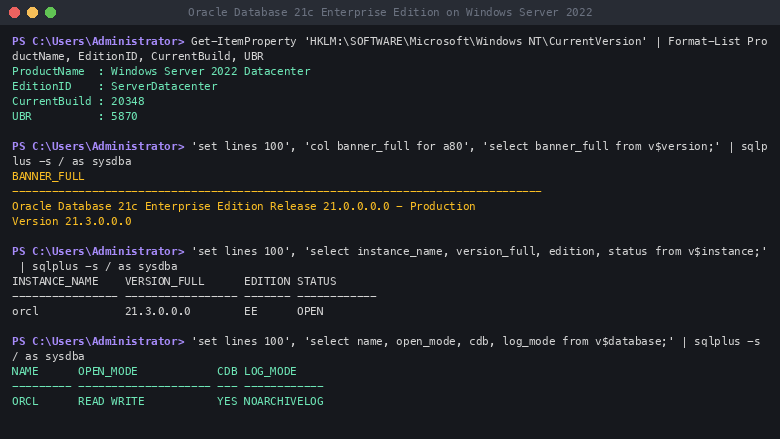
Oracle Database 21c EE on Windows Server 2022
Image
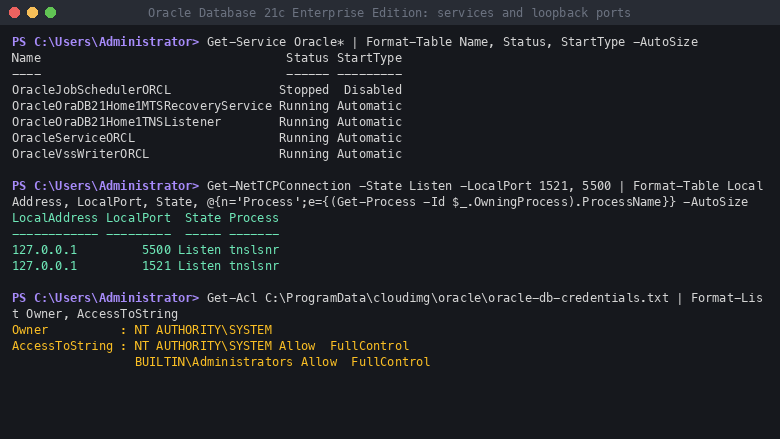
21c EE on Windows Server 2022: loopback only
Image
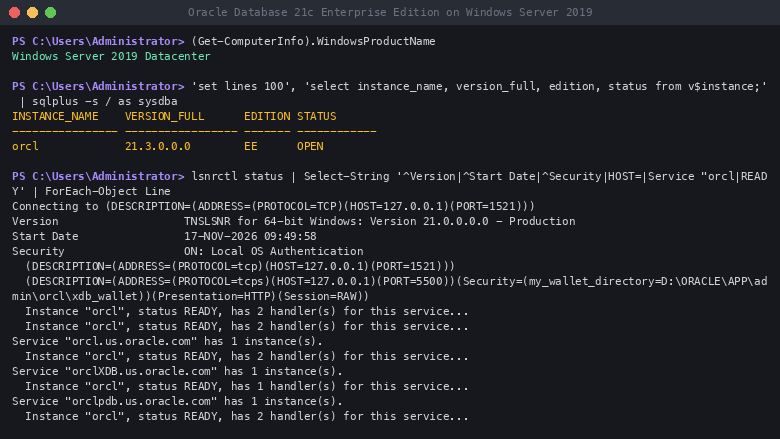
Oracle Database 21c EE on Windows Server 2019
This is a repackaged software product wherein additional charges apply for the installation, configuration and packaging of the software in this image by cloudimg.
What cloudimg adds to Oracle Database 21c Enterprise Edition
This image installs Oracle Database 21c Enterprise Edition (release 21.3.0.0.0) on Windows Server and creates a multitenant database that opens when Windows starts. Choose the operating system when you subscribe:
- Windows Server 2022 Datacenter (build 20348.5870)
- Windows Server 2019 Datacenter (build 17763.9487)
On both versions you get:
- Per-instance database passwords: the image holds no usable database password. At first boot the instance generates its own SYS, SYSTEM and PDBADMIN passwords, checks that each one logs in, and writes them to C:\ProgramData\cloudimg\oracle\oracle-db-credentials.txt, readable by Administrators only
- Listener on loopback only, started at boot: the listener answers on 127.0.0.1:1521 and EM Express on 127.0.0.1:5500; no Oracle port is reachable from outside the instance until you open one
- Windows updated at build: through Windows Update on 16 November 2026
- Oracle software on its own EBS volume: ORACLE_HOME D:\Oracle on a dedicated 20 GB D: volume, separate from the 75 GB C: drive
- A ready-made database: container database ORCL with the pluggable database ORCLPDB, opened at boot by the OracleServiceORCL service
- Administration from the first login: sqlplus / as sysdba as Administrator; SQLPlus, RMAN, Data Pump and SQLLoader on the PATH
- AWS tooling: AWS CLI v2, the SSM Agent (running, ready for Session Manager), EC2Launch v2 and the CloudWatch agent (installed, not configured)
- A step-by-step user guide for launch, the credentials file, the pluggable database, Session Manager connections and troubleshooting
If you launched a version released before 16 November 2026, change SYS and SYSTEM now: those versions start with a password set when the image was built (see the user guide).
Licensing: bring your own Oracle licence
This listing does not include an Oracle Database licence. The Windows Server licence is included in the EC2 instance price charged by AWS, and the hourly charge on this listing is cloudimg's, for the installation, configuration and packaging of this image. You must hold a valid Oracle Database Enterprise Edition licence and use it under your agreement with Oracle. Under Oracle's cloud licensing policy two vCPUs count as one processor licence when hyper-threading is enabled; check the current policy.
The Diagnostics and Tuning Packs are switched on in this database (CONTROL_MANAGEMENT_PACK_ACCESS = DIAGNOSTIC+TUNING). They are separately licensed; if you do not hold those licences, set the parameter to NONE at first login, before you use the database or EM Express, as the user guide shows. Options installed in the database, such as OLAP, Label Security and Database Vault, also need their own Oracle licence before you use them.
Oracle Database 21c is an Innovation Release: Oracle Premier Support ends on 31 July 2027 and there is no Extended Support. Oracle supports 21c on Windows Server 2022 from Release Update 21.4; this image ships the 21.3 base release with no Release Update, so apply a current Release Update under your Oracle support contract before production use, and before any use on the Windows Server 2022 version.
Oracle and Java are registered trademarks of Oracle and/or its affiliates. Microsoft and Windows Server are trademarks of the Microsoft group of companies. cloudimg is not affiliated with or endorsed by Oracle or Microsoft.
What Enterprise Edition includes
Enterprise Edition adds features that Standard Edition 2 lacks, such as Data Guard physical standby databases, Flashback Database, parallel query and online table redefinition. Up to three user-created pluggable databases per container need no Multitenant licence. Options such as Partitioning, Database In-Memory, Advanced Security, Real Application Clusters and the Diagnostics and Tuning Packs are licensed separately from Oracle.
Getting started
- Subscribe and choose the Windows Server 2022 or 2019 version (m5.large or larger, with at least 8 GB of memory).
- The suggested security group allows RDP from anywhere: change the source to your own IP. Decrypt the Administrator password with your key pair and connect with RDP.
- About 10 minutes after launch, read your database passwords in an elevated PowerShell: Get-Content C:\ProgramData\cloudimg\oracle\oracle-db-credentials.txt.
- Run sqlplus / as sysdba. If you do not license the Diagnostics and Tuning Packs, run ALTER SYSTEM SET CONTROL_MANAGEMENT_PACK_ACCESS='NONE' SCOPE=BOTH;.
- Open ORCLPDB and save its state, as the user guide shows.
- Keep TCP 1521 closed to the internet: connect through Session Manager port forwarding, or allow 1521 from your own range only, as the user guide shows.
Highlights
- Oracle Database 21c Enterprise Edition (21.3 base release) on Windows Server 2022 or 2019, updated at build: container database ORCL with pluggable database ORCLPDB on a dedicated 20 GB D: EBS volume.
- Per-instance SYS, SYSTEM and PDBADMIN passwords generated at first boot in an Administrators-only file; the listener answers on 127.0.0.1:1521 only and starts at boot; connect through Session Manager port forwarding.
- Bring your own Oracle Database Enterprise Edition licence; the Windows Server licence is in the EC2 price. The image ships the 21.3 base release with no Release Update: apply a current Release Update before production use.
Features and programs
Financing for AWS Marketplace purchases
AWS Marketplace now accepts line of credit payments through the PNC Vendor Finance program. This program is available to select AWS customers in the US, excluding NV, NC, ND, TN, & VT.

Pricing
Free trial
Try this product free for 7 days according to the free trial terms set by the vendor. Usage-based pricing is in effect for usage beyond the free trial terms. Your free trial gets automatically converted to a paid subscription when the trial ends, but may be canceled any time before that.
Pricing is based on actual usage, with charges varying according to how much you consume. Subscriptions have no end date and may be canceled any time. Alternatively, you can pay upfront for a contract, which typically covers your anticipated usage for the contract duration. Any usage beyond contract will incur additional usage-based costs.
Additional AWS infrastructure costs may apply. Use the AWS Pricing Calculator to estimate your infrastructure costs.
If you are an AWS Free Tier customer with a free plan, you are eligible to subscribe to this offer. You can use free credits to cover the cost of eligible AWS infrastructure. See AWS Free Tier for more details. If you created an AWS account before July 15th, 2025, and qualify for the Legacy AWS Free Tier, Amazon EC2 charges for Micro instances are free for up to 750 hours per month. See Legacy AWS Free Tier for more details.
- ...
Dimension | Description | Cost/hour |
|---|---|---|
t3.large Recommended | t3.large instance type | $0.10 |
t2.micro | t2.micro instance type | $0.06 |
t3.micro | t3.micro instance type | $0.06 |
m7a.large | m7a.large instance type | $0.10 |
m7i-flex.xlarge | m7i-flex.xlarge instance type | $0.15 |
m7i.large | m7i.large instance type | $0.10 |
t3.small | t3.small instance type | $0.06 |
x1e.32xlarge | x1e.32xlarge instance type | $0.28 |
r5b.24xlarge | r5b.24xlarge instance type | $0.28 |
p3.2xlarge | p3.2xlarge instance type | $0.28 |
Dimensions summary
You pay by the hour based on the EC2 instance type you launch. Each dimension represents one instance size, and the rate scales with the compute, memory, and storage that instance offers. Smaller shared-core instances carry lower hourly rates, while large memory-, compute-, storage-, and GPU-focused families carry higher rates. You pick the instance that fits your workload and pay only for the hours it runs. This hourly charge covers the machine image and 24/7 support. It does not include an Oracle Database license; the Windows Server license is part of the EC2 instance price charged by AWS.
Top-of-mind questions for buyers
The hourly charge covers the machine image and 24/7 support from cloudimg. The Windows Server license is part of the EC2 instance price charged by AWS. You must hold your own Oracle Database Enterprise Edition license. Options like Partitioning, Database In-Memory, and the Diagnostics and Tuning Packs need separate Oracle licenses.
The hourly software charge applies while the instance runs. A stopped instance does not accrue the hourly software charge. You may still pay underlying AWS storage fees for the attached volumes, since both the 75 GB C: root volume and 20 GB D: Oracle volume remain until the instance is terminated.
No. The hourly rate is set by the EC2 instance type you launch, not the Windows version. Both versions carry the same Oracle Database installation and the same database. You select your Region and software version at launch, then pick the instance size that fits your workload.
www.cloudimg.co.uk
Helpful?
Vendor refund policy
Refunds available on request.

Legal
Vendor terms and conditions
Upon subscribing to this product, you must acknowledge and agree to the terms and conditions outlined in the vendor's End User License Agreement (EULA) .
Content disclaimer
Vendors are responsible for their product descriptions and other product content. AWS does not warrant that vendors' product descriptions or other product content are accurate, complete, reliable, current, or error-free.
Delivery details
64-bit (x86) Amazon Machine Image (AMI)
Amazon Machine Image (AMI)
An AMI is a virtual image that provides the information required to launch an instance. Amazon EC2 (Elastic Compute Cloud) instances are virtual servers on which you can run your applications and workloads, offering varying combinations of CPU, memory, storage, and networking resources. You can launch as many instances from as many different AMIs as you need.
Version release notes
Rebuilt for per-instance passwords: the SYS, SYSTEM and PDBADMIN passwords are generated on each instance at first boot and written to an Administrators-only file; the password set when the earlier image was built does not work on this version. The Oracle listener is bound to 127.0.0.1:1521 and starts at boot (EM Express on 127.0.0.1:5500 only). Windows Server 2019 Datacenter fully updated through Windows Update on 16 November 2026 (OS build 17763.9487). Oracle Database 21c Enterprise Edition 21.3.0.0.0 base release, no Release Update applied. If you run an instance of an earlier version, change SYS and SYSTEM now (see the guide).
Additional details
Usage instructions
Connect with Remote Desktop (3389) as Administrator (Get Windows password with your key pair). The suggested security group allows RDP from anywhere: change the source to your own IP. About 10 minutes after launch, first boot writes this instance's own SYS, SYSTEM and PDBADMIN passwords to C:\ProgramData\cloudimg\oracle\oracle-db-credentials.txt (Administrators only; progress in C:\ProgramData\cloudimg\oracle-firstboot.log). On the instance run sqlplus / as sysdba. Open the pluggable database ORCLPDB and save its state as the guide shows. The listener answers on 127.0.0.1:1521 only. EM Express answers on 127.0.0.1:5500 only. From your workstation use Session Manager port forwarding (AWS-StartPortForwardingSession, portNumber=1521) and connect to localhost:1521/orclpdb.us.oracle.com, or bind the listener to the private address and allow TCP 1521 from your own IP range only; never open 1521 to the internet. Bring your own Oracle licence. Guide: https://www.cloudimg.co.uk/guides/oracle-database-21c-enterprise-on-windows/
Resources
Vendor resources
Support
Vendor support
cloudimg's support team is on hand 24 hours a day by email for this image, with a guaranteed response within 24 hours: launch and first login, RDP access, signing in with SQL*Plus, reading the per-instance SYS, SYSTEM and PDBADMIN passwords, opening the pluggable database, the loopback listener and remote connections through Session Manager, CONTROL_MANAGEMENT_PACK_ACCESS for the options you license, configuration, backup and migration, updates and troubleshooting. Contact: support@cloudimg.co.uk or https://www.cloudimg.co.uk/support Oracle software support, patches and licences come from Oracle under your own agreement.
AWS infrastructure support
AWS Support is a one-on-one, fast-response support channel that is staffed 24x7x365 with experienced and technical support engineers. The service helps customers of all sizes and technical abilities to successfully utilize the products and features provided by Amazon Web Services.
Similar products
This product has charges associated with it for the installation, configuration and packaging of Oracle Database 19c Enterprise Edition (19.3 base release) on Windows Server 2022 or 2019: per-instance SYS and SYSTEM passwords set at first boot and a non-CDB ORCL database and listener (127.0.0.1 only) started at boot. Bring your own Oracle licence.
This product has charges associated with it for the installation, configuration and packaging of Oracle Database 21c Standard Edition 2 21.3 on Windows Server 2022 or 2019, updated at build: per-instance SYS, SYSTEM and PDBADMIN passwords set at first boot, listener on 127.0.0.1 only, CDB ORCL with PDB ORCLPDB. Bring your own Oracle licence.
This product has charges associated with it for the installation, configuration and packaging of Oracle Database 19c SE2 (19.3 base release) on Windows Server 2022 or 2019: SYS and SYSTEM passwords generated per instance at first boot, a listener on 127.0.0.1 only and a non-CDB ORCL database that opens at boot. Bring your own Oracle licence.
This product has charges associated with it for the installation, configuration and packaging of Oracle Database Client 19c. Oracle Database Client 19c (19.3 base release) on Windows Server 2022 or 2019 with Windows updates to November 2026: SQLPlus, Data Pump, RMAN and SQLLoader on the PATH, plus ODP.NET, JDBC and the Oracle ODBC driver.
Customer reviews
No customer reviews yet
Be the first to review this product . We've partnered with PeerSpot to gather customer feedback. You can share your experience by writing or recording a review, or scheduling a call with a PeerSpot analyst.