AWS Public Sector Blog
Automate cross-partition AWS GovCloud (US) account bootstrapping
Public sector teams building in AWS GovCloud (US) need accounts provisioned quickly and consistently so mission owners can start delivering value sooner. Manually creating an account and bootstrapping it into an organization across the partition boundary is slow, repetitive, and error-prone—each handoff adds delay and a chance for misconfiguration. Automating cross-partition account bootstrapping compresses that process from a multi-step manual effort into minutes, while enforcing the consistent governance posture that compliance frameworks require.
In the post Automate AWS GovCloud (US) account creation using AWS Organizations APIs, we showed how to programmatically create GovCloud (US) accounts using AWS Organizations APIs. That post ends at account creation—the new accounts exist but the standard account remains in the organization root while the GovCloud (US) account remains a standalone account. You must manually complete the steps to join a GovCloud (US) organization and move accounts to the correct organizational units (OUs).
This post picks up where the previous one left off. Using Amazon API Gateway, AWS Lambda, and Parameter Store, a capability of AWS Systems Manager, we automate the remaining workflow across the partition boundary: moving the commercial account to its target OU, relaying the new GovCloud (US) account ID to the GovCloud (US) partition, inviting the account to the GovCloud (US) organization, accepting the invitation, and assigning it to the target OU. The result is an event-driven provisioning pipeline that places accounts in the correct OUs in both partitions, with no long-lived credentials, no intermediate storage, and no polling mechanisms. The complete source code for this solution is available in this GitHub repository.
Extending automation across the partition boundary
The partition boundary between GovCloud (US) and commercial is an intentional security control that supports the compliance requirements of sensitive workloads. However, it also means standard tools like AWS Control Tower and Account Factory can’t orchestrate the full account lifecycle across both sides. Teams must resort to manual console steps or ad-hoc scripts without a repeatable pattern.
This solution addresses that issue. By combining the CreateGovCloudAccount API with API Gateway and AWS Lambda, you can automate the cross-partition enrollment workflow:
- Call
CreateGovCloudAccountAPI from the commercial partition to create a new GovCloud (US) account. - Move the commercial account to its target OU.
- Send the new GovCloud (US) account ID and target OU to the GovCloud (US) partition through API Gateway.
- Send an organization invitation to the new GovCloud (US) account.
- Assume the
OrganizationAccountAccessRoleto accept the invitation. - Move the GovCloud (US) account to the correct OU.
The new accounts are then enrolled in their respective organizations, placed under the appropriate OUs, and inherit the service control policies (SCPs) and governance policies your team has already defined. They’re now ready for the mission owner to start building.
Solution overview
The solution spans both partitions, connected by an API Gateway endpoint in GovCloud (US) and a shared API key stored in Parameter Store for cross-partition authentication.
The commercial partition consists of the following components:
- Lambda – Creates the GovCloud (US) account using the
CreateGovCloudAccountAPI, moves the commercial account to its target OU, retrieves the shared API key from Parameter Store, and sends the GovCloud (US) account ID and target OU to the GovCloud (US) API Gateway endpoint - Parameter Store – Stores the shared API key and the GovCloud (US) API Gateway endpoint URL as SecureString parameters
The GovCloud (US) partition consists of the following components:
- API Gateway – Exposes an HTTP API endpoint (
POST /ingest) that receives cross-partition requests from the commercial Lambda function - Lambda – Validates the API key, sends an organization invitation to the new GovCloud (US) account, assumes the
OrganizationAccountAccessRolethrough AWS Security Token Service (AWS STS) to accept the invitation, and moves the account to the target OU - Parameter Store – Stores the shared API key as a SecureString for validating incoming requests
The following diagram illustrates the solution architecture.
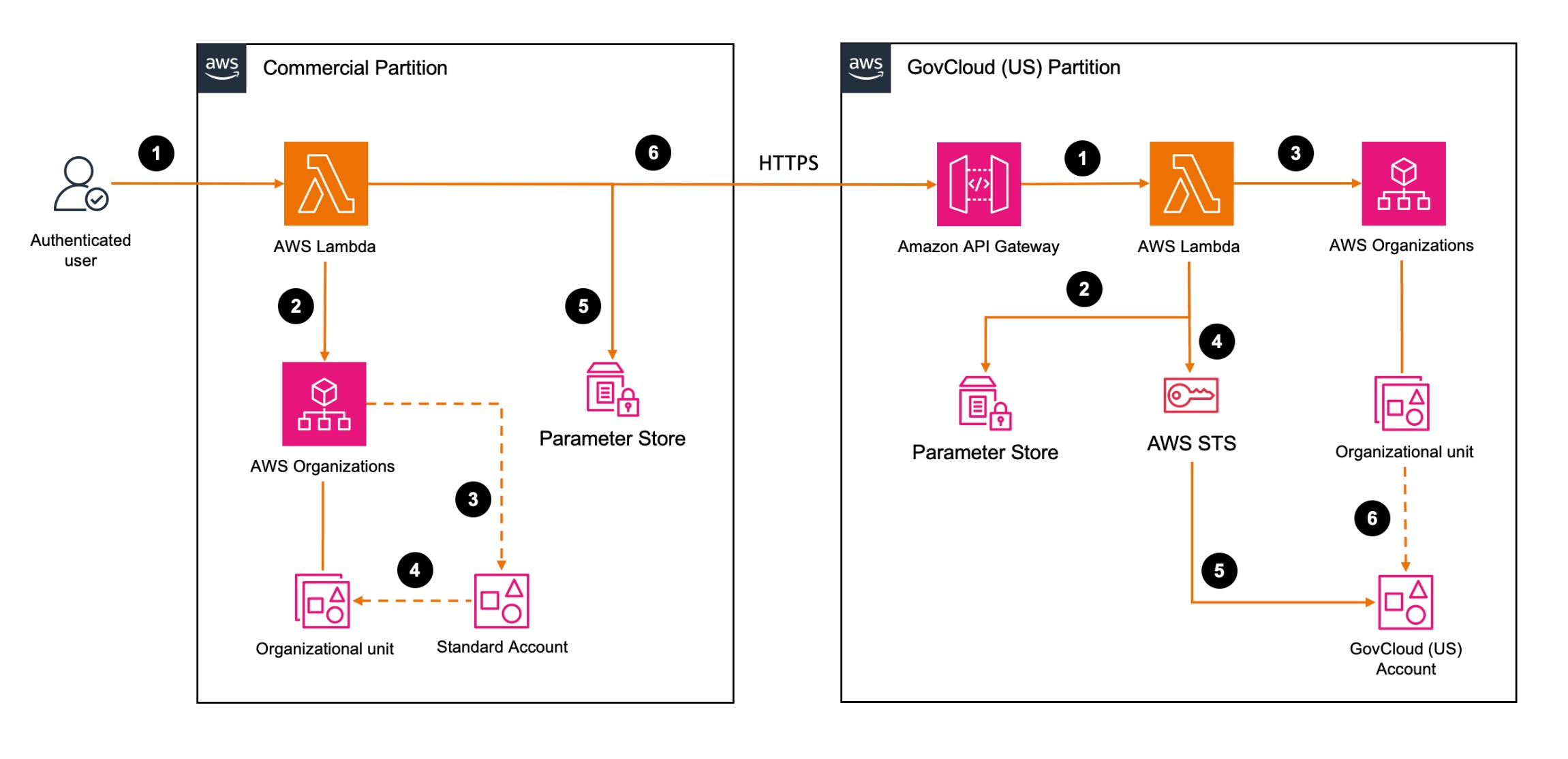
Figure 1: Cross-partition account bootstrapping workflow
The commercial partition workflow consists of the following steps:
- An authenticated user invokes the commercial Lambda function with the account name, email, and target OU.
- The Lambda function calls the AWS Organizations
CreateGovCloudAccountAPI. - AWS Organizations creates a standard account in the commercial partition and a GovCloud (US) account in the GovCloud (US) partition.
- The Lambda function moves the new standard account into the specified OU.
- The Lambda function retrieves the shared API key from Parameter Store.
- The Lambda function sends an HTTPS POST request cross-partition to the GovCloud (US) API Gateway endpoint, passing the shared API key, account ID, and target OU.
The GovCloud (US) partition workflow consists of the following steps:
- API Gateway receives the request and invokes the GovCloud (US) Lambda function.
- The Lambda function retrieves the stored API key from Parameter Store and validates it against the incoming request header.
- The Lambda function calls the AWS Organizations InviteAccountToOrganization API to send an organization invitation to the new account.
- The Lambda function calls AWS STS to assume the
OrganizationAccountAccessRolein the new GovCloud (US) account. - Using the assumed role, the Lambda function accepts the invitation to join the organization.
- The Lambda function moves the GovCloud (US) account to the target OU.
Cross-partition communication with a shared API key
The core challenge of this solution is to securely communicate across the partition boundary. Standard AWS authentication mechanisms like AWS Identity and Access Management (IAM) authorization with SigV4 don’t work across partitions because each partition maintains a separate IAM namespace with no cross-partition trust federation.
This solution uses a shared secret stored as a SecureString in Parameter Store in both partitions. At runtime, the commercial Lambda function retrieves both the shared API key and the GovCloud (US) API Gateway endpoint URL from Parameter Store. It then sends an HTTPS POST request to the endpoint, including the API key in the x-api-key header and a JSON payload containing the new GovCloud (US) account ID and target OU. On the GovCloud (US) side, API Gateway invokes the Lambda function, which retrieves its copy of the key from Parameter Store and validates it against the incoming header using hmac.compare_digest (a timing-safe comparison). Only after validation succeeds does the Lambda function process the payload and proceed with the bootstrapping workflow.
This approach has several security benefits:
- AWS Key Management Service (AWS KMS) encrypts the API key at rest through the SecureString parameter type
- The timing-safe comparison prevents timing-based side-channel attacks
- The API Gateway endpoint uses HTTPS, encrypting the key and payload in transit
- No long-lived IAM access keys are stored or transmitted across partitions
- Amazon CloudWatch logs authentication events
- You can rotate the API key as needed by updating the parameter in both partitions
Prerequisites
To follow along with this post, you need the following:
- An AWS commercial partition management account with AWS Organizations configured
- An AWS GovCloud (US) organization management account
- Familiarity with the post Automate AWS GovCloud (US) account creation using AWS Organizations APIs
- The AWS Command Line Interface (AWS CLI) installed and configured with credentials for both management accounts
- An OU created in each organization where new accounts will be placed
- Familiarity with Lambda, AWS Organizations, API Gateway, and IAM roles
Set up shared API key
Before deploying resources in either partition, generate and store the shared API key. You must complete this step manually because AWS CloudFormation doesn’t support creating SecureString parameters.
1. From AWS CloudShell in either partition, generate a strong random key for the shared secret:
2. Copy the output; you need the same value in both partitions.
3. In each partition, open CloudShell in the management account and run the following command to store the API key in Parameter Store:
Deploy resources in GovCloud (US) account
Deploy the solution using the GovCloud (US) partition stack first because the commercial partition stack requires the API Gateway endpoint URL as an input parameter (replace the placeholder values with your actual values):
Note the API endpoint URL from the stack outputs; you will need this endpoint to deploy the CloudFormation stack in the commercial partition.
Deploy resources in commercial partition
Use the API Gateway endpoint URL obtained from the GovCloud (US) stack output to deploy the commercial partition stack (replace the placeholder values with your actual values):
Validate solution
A two-phase testing approach confirms each component works correctly before running a full live test.
Phase 1: Dry run validation
Test the cross-partition communication and bootstrapping workflow without creating a new GovCloud (US) account. To do this, remove an existing account from the GovCloud (US) organization to use as a test target, then invoke the commercial Lambda function with a dry run event.
To invoke the Lambda function, use the AWS CLI from CloudShell or a terminal configured with credentials for the commercial management account:
Verify the following in Amazon CloudWatch Logs:
- Commercial Lambda function – Should show a successful HTTPS POST to the GovCloud (US) API Gateway endpoint
- GovCloud (US) Lambda function – Should show the API key validation passed, organization invitation sent, invitation accepted, and account moved to the target OU
Phase 2: Live end-to-end test
After Phase 1 succeeds, run the full pipeline by invoking the commercial Lambda function with a real account creation request. You need to provide the following information:
- A unique email address to be used as the root user of the commercial account
- A name for the account
- A target OU in the commercial organization
- A target OU in the GovCloud (US) organization
Account creation takes approximately 70 seconds, with an additional few seconds to complete the cross-partition bootstrapping workflow. When it’s complete, complete the final validation steps:
- Check your email for new account notifications from AWS
- Verify the new accounts appear under their respective target OUs on the AWS Organizations console for each partition
For debugging and troubleshooting, review CloudWatch Logs for both Lambda functions.
Clean up test invitations
If you test with a placeholder account ID that doesn’t exist or isn’t ready to accept an invitation, the Lambda function sends an organization invitation but fails on the subsequent AssumeRole step. This leaves an open handshake in your organization.
To cancel stale invitations, complete the following steps:
- Sign in to the GovCloud (US) management account.
- Open the AWS Organizations console.
- In the navigation pane, choose Invitations.
- Locate the pending invitation sent to the test account ID.
- Select the invitation and choose Cancel invitation.
- Confirm the cancellation.
Alternatively, you can cancel invitations programmatically using the AWS CLI:
To list open handshakes, use the following command:
Canceling stale invitations prevents them from being accidentally accepted later and keeps your organization’s handshake history clean.
Extending the solution
The GovCloud (US) Lambda function serves as the central orchestration point for the bootstrapping workflow. If your organization requires additional post-provisioning steps, you can extend this function to integrate with other AWS services. For example:
- Call AWS Support API to enroll the account into a support plan
- Call AWS Service Catalog to apply a baseline product to the new account
- Invoke AWS Step Functions for more complex multi-step workflows
- Publish notifications to Amazon Simple Notification Service (Amazon SNS) topics to alert your operations team
- Trigger Control Tower lifecycle events for guardrail enrollment
To add these integrations, modify the Lambda function code in the CloudFormation template before deployment, or update the function after the stack is created. Be sure to add the corresponding IAM permissions to the Lambda execution role.
Operational considerations
Keep in mind the following:
- API key rotation – Rotate the shared API key periodically as a security best practice. To rotate, generate a new key and update the Parameter Store value in both partitions. The Lambda functions retrieve the key at runtime, so no redeployment is required; the new key takes effect immediately.
- Monitoring – Configure CloudWatch alarms on both Lambda functions for error rates and failed invocations. A
403 Forbiddenresponse from the GovCloud (US) endpoint indicates an API key mismatch. AnAccessDeniedExceptionresponse on the AWS Organizations API calls indicates a permissions issue that requires attention. - Nested OU support – The
target-ouparameter supports slash-separated paths for nested OU structures (for example,Workloads/Sandbox/Team-A). If your organization has duplicate OU names at different levels, always pass the full path from the commercial side to avoid ambiguity.
Clean up
If you no longer need the solution, delete the resources you created in this walkthrough to keep your accounts tidy and remove unused infrastructure.
Delete the GovCloud (US) resources with the following commands:
1. Delete the CloudFormation stack:
2. Delete the Parameter Store value:
Delete the commercial resources with the following commands:
1. Delete the CloudFormation stack:
2. Delete the Parameter Store value:
Conclusion
In this post, we showed how to automate the complete cross-partition bootstrapping workflow for AWS GovCloud (US) accounts. By combining API Gateway, Lambda, and Parameter Store, you can build an event-driven provisioning pipeline that requires no long-lived credentials, no intermediate storage, and no manual intervention. The solution is auditable through CloudWatch and straightforward to maintain.
This approach extends the automation introduced in Automate AWS GovCloud (US) account creation using AWS Organizations APIs to deliver a complete account lifecycle—from creation through organizational enrollment—in a repeatable, secure pipeline.
To learn more, visit the following resources:
- Automate cross-partition AWS GovCloud (US) account bootstrapping solution code
- Amazon API Gateway Developer Guide
- AWS Systems Manager Parameter Store User Guide
- AWS Organizations in AWS GovCloud (US)
- Automate AWS GovCloud (US) account creation using AWS Organizations APIs
Ready to automate your GovCloud (US) account strategy? Contact your AWS account team or the AWS Public Sector team to get started.